
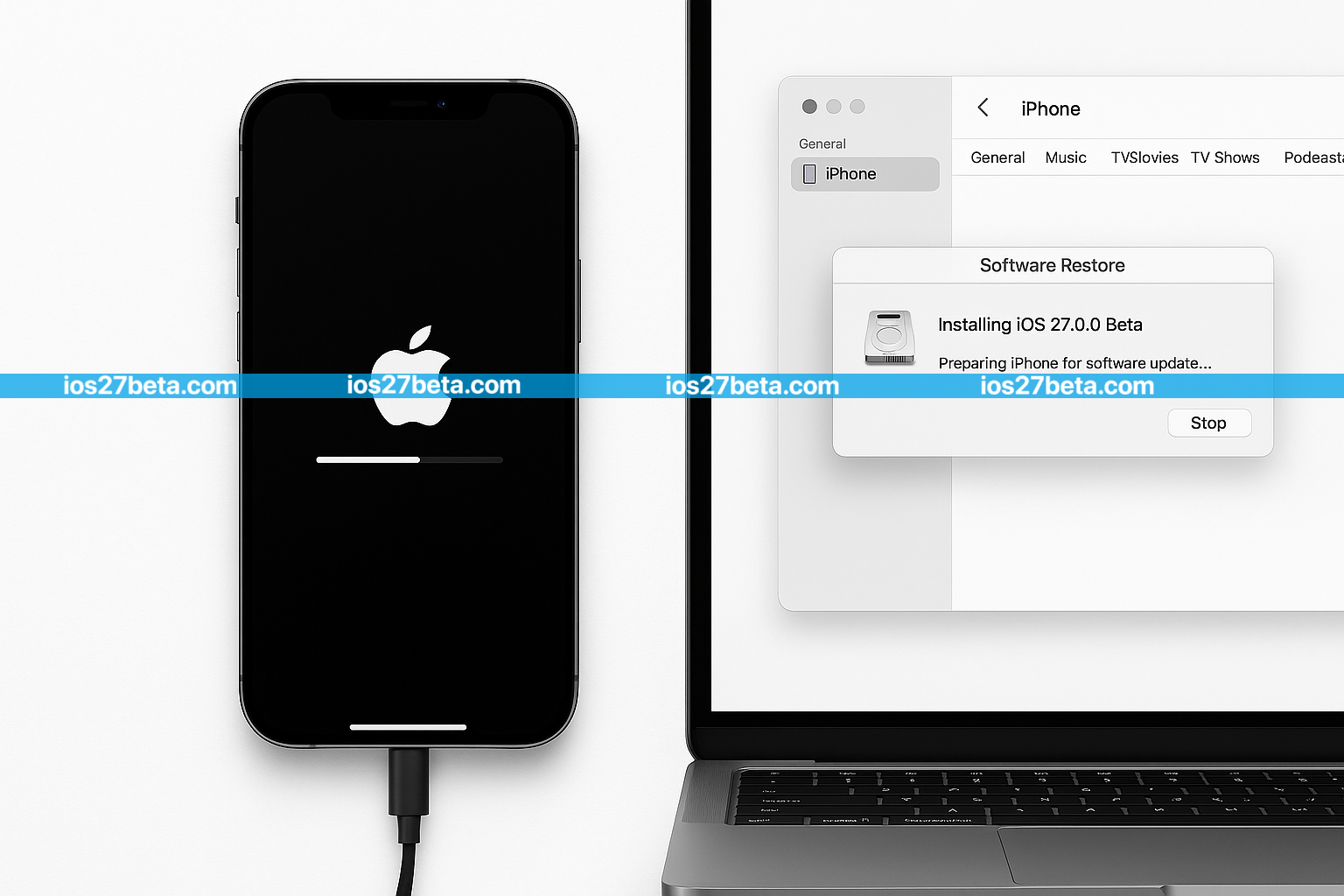
This is the definitive guide to iOS 27 IPSW files and Apple's firmware ecosystem. Whether you're preparing for the iOS 27 launch at WWDC 2026, troubleshooting your iPhone, or considering a manual installation, this resource covers every aspect of IPSW — from device identifiers and signing status to installation methods and verification.
Since June 2023, Apple has made all Developer Beta and Public Beta IPSW files completely free with just an Apple ID. The $99/year Apple Developer Program is only required for App Store publishing — not for accessing iOS 27 IPSW files.
What is an IPSW File?
iPhone17,1 for iPhone 16 Pro). The archive contains the file system image, bootloader files, kernel cache, baseband firmware, and device-specific drivers. iOS 27 IPSW files are approximately 6-8 GB depending on iPhone or iPad model.
The term "IPSW" originated as "iPhone Software" but now applies to firmware for all Apple devices including iPad (iPadOS), Apple TV (tvOS), and Apple Watch (watchOS). When you rename the file extension from .ipsw to .zip, you can extract the contents to see its structure.
What's Inside an IPSW File
An iOS 27 IPSW archive contains several critical components:
- BuildManifest.plist — Manifest describing the build, device compatibility, and required components
- Restore.plist — Restore configuration file Apple uses during installation
- System DMG files — Disk images containing iOS file system (multiple files: system, dyld_shared_cache, AssetData)
- Firmware folder — Device-specific firmware including baseband, audio DSP, secure enclave processor (SEP), USB controller, and Wi-Fi/Bluetooth chip firmware
- kernelcache — Pre-compiled iOS kernel optimized for the specific device
- iBEC and iBSS — Boot loaders for Recovery Mode and DFU Mode
- LLB (Low Level Bootloader) — First-stage boot loader signed by Apple
Why Use IPSW Installation?
For most everyday iPhone users, OTA updates through Settings are perfectly adequate. IPSW installation is for specific scenarios where the standard update path fails or doesn't offer the needed functionality.
8 Use Cases for IPSW Installation
Clean Installation
Fresh start eliminating system clutter, corrupted files, and accumulated settings issues.
Troubleshooting
Fix persistent issues like crashes, performance problems, or boot failures OTA can't resolve.
Recovery Mode Rescue
Restore iPhone stuck in Recovery Mode showing iTunes/Computer icon.
Downgrade iOS
Return to previous iOS version while Apple still signs it (limited time window).
Install Beta
Install Developer or Public Beta directly without OTA enrollment delay.
Offline Installation
Install iOS without active internet connection once IPSW is downloaded.
Multi-Device Deployment
Download once, install on multiple identical devices without re-downloading.
Fix Failed OTA
Recover when OTA update failed mid-install, leaving iPhone unbootable or stuck.
Get iOS 27, iOS 26, iPadOS 27 & More IPSW Files
Direct links to official Apple-signed IPSW files for every supported iPhone and iPad. Sorted by device, version, and signing status — all verified daily.
Browse All IPSW DownloadsIPSW vs OTA Update: Complete Comparison
| Feature | IPSW | OTA Update |
|---|---|---|
| Installation Method | Computer (Finder/iTunes) | iPhone Settings app |
| File Size | 5-8 GB (complete firmware) | 1-3 GB (delta only) |
| Installation Type | Clean install (full) | Incremental (partial) |
| Data Preservation | Optional (Update mode) | ✓ Automatic |
| Technical Difficulty | Advanced | Beginner |
| Computer Required | ✓ Yes | ✗ No |
| Recovery Mode Fix | ✓ Yes | ✗ No |
| Downgrade Possible | ✓ Yes (while signed) | ✗ No |
| Offline Install | ✓ Yes | ✗ No |
| Installation Speed | 15-30 min | 30-60 min |
| Free with Apple ID | ✓ Yes (since 2023) | ✓ Yes |
iOS 27 IPSW Release Schedule
| Version | Expected Date | Apple Signing | Where to Download |
|---|---|---|---|
| iOS 27 Developer Beta 1 | June 8, 2026 · 1 PM PT | Active | developer.apple.com |
| iOS 27 Public Beta 1 | Mid-July 2026 | Active | beta.apple.com |
| iOS 27 Beta 2-7 | July-August 2026 | Active | Apple official sources |
| iOS 27 Release Candidate | Early September 2026 | Active | Apple official sources |
| iOS 27.0 (Stable) | September 14, 2026 | Active | Apple official + OTA |
| iOS 26.x (Final versions) | Available now | Active until Oct 2026 | Our IPSW hub |
Device Identifiers Explained
iPhone17,1 for iPhone 16 Pro, iPad14,3 for iPad Air M2). IPSW filenames include this identifier, and installing the wrong file causes immediate "firmware not compatible" error. Find your iPhone's identifier in Settings → General → About → Model Number and cross-reference at theapplewiki.com or our IPSW download page.
Apple identifiers follow the pattern DeviceFamily{Generation},{Variant}. For example:
iPhone Identifiers (Recent)
iPad Identifiers (Recent)
Settings → General → About (like A3083, A2849) maps to a unique device identifier. Cross-reference at theapplewiki.com or use the iOS Shortcuts app with a "Get Device Details" action to see your exact identifier.
Where to Download IPSW Files
Official Sources (Recommended)
- developer.apple.com/download — Apple's official Developer Beta portal. Free with Apple ID since June 2023. Sign in, navigate to "Software Releases", download IPSW for your device.
- beta.apple.com — Apple's Public Beta portal. Enroll your device, download IPSW files for installed Public Beta versions.
Trusted Third-Party Sources
- ipsw.me — Community-maintained database mirroring Apple-signed IPSW files. Real-time signing status, SHA1 checksums, all device firmware history.
- theapplewiki.com — Detailed firmware database with device identifiers, build numbers, and historical IPSW information.
- Our IPSW download hub — Curated, organized links sorted by device and iOS version with Apple-signed verification.
Apple Signing Window: Why It Matters
The signing system serves three purposes:
- Security: Prevents installation of modified or malicious firmware
- Authentication: Verifies the IPSW genuinely comes from Apple
- Version control: Allows Apple to retire older versions and require security updates
Checking Signing Status
Before downloading or installing any IPSW, verify Apple still signs it:
- Visit ipsw.me
- Select your device model
- Look at the "Signed" column — green checkmark means actively signed
- Red X means Apple stopped signing — installation will fail
Verify IPSW Authenticity (SHA1 Checksum)
shasum -a 1 filename.ipsw in Terminal. On Windows, run certutil -hashfile filename.ipsw SHA1 in Command Prompt. Compare the output to the SHA1 listed at ipsw.me — they must match exactly. If different, the file is corrupted or modified.
How to Verify SHA1 Checksum
Find Official SHA1
Visit ipsw.me, select your device, find the iOS version. The SHA1 hash is listed in the file details.
Calculate Your File's SHA1
Run the appropriate command for your computer:
- Mac:
shasum -a 1 /path/to/firmware.ipsw - Windows:
certutil -hashfile firmware.ipsw SHA1 - Linux:
sha1sum firmware.ipsw
Compare Hashes
Both SHA1 strings must match exactly (40 hexadecimal characters). Even one character difference indicates a corrupted or modified file — delete and re-download.
Installation Methods Overview
Method 1: Update via IPSW (Preserves Data)
Download Correct IPSW
Verify device identifier and Apple signing status before downloading. Use our IPSW hub or ipsw.me.
Disable Find My iPhone
Go to Settings → [Your Name] → Find My → Find My iPhone → Off. Required for installation.
Connect & Open Finder/iTunes
Connect iPhone via cable. Open Finder (macOS Catalina+) or iTunes (Windows or older Mac). Select iPhone from sidebar/devices.
Choose IPSW with Update Mode
Hold Option (Mac) or Shift (Windows) and click "Check for Update". Browse and select the iOS 27 IPSW. Important: This preserves all data, settings, and apps.
Confirm & Wait
Confirm installation. iPhone restarts multiple times over 15-30 minutes. Do not disconnect cable. Verify version in Settings → General → About → Software Version.
Method 2: Restore via IPSW (Erases Data)
Same steps as Update, except click "Restore iPhone" instead of "Check for Update". This erases all data and performs a clean install. Backup first.
For complete iOS install instructions with all variations, see our iOS 27 Beta installation guide and iPadOS 27 Beta installation guide.
Troubleshooting Common IPSW Errors
Error 3194 / 4000
gs.apple.com). Try different USB port. Use Apple original cable.Firmware Not Compatible
Stuck in Recovery Mode
Find My Must Be Disabled
IPSW File Corrupted
Device Not Recognized
Safety & Best Practices
Pre-Installation Checklist
- Encrypted backup created within last 24 hours (Finder/iTunes recommended over iCloud)
- Device identifier verified — IPSW matches your exact iPhone/iPad model
- Apple signing confirmed active at ipsw.me
- SHA1 checksum verified matches official hash
- Find My iPhone disabled on the device
- 15-20 GB free space on computer
- iPhone battery 50%+ or connected to power
- Original Apple cable (not third-party)
- Latest Finder/iTunes installed