
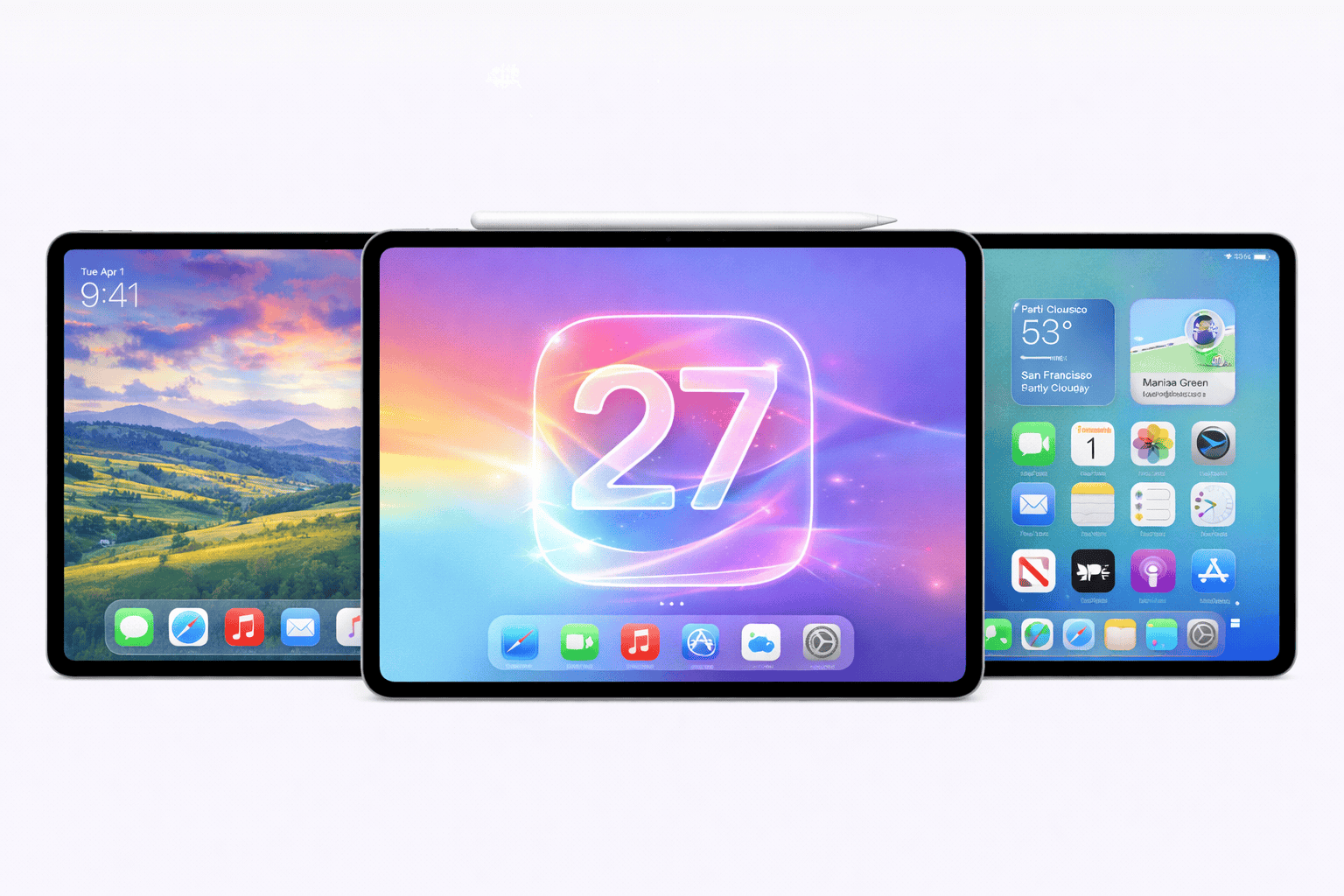
iPadOS 27 arrives June 8, 2026 — the same day as iOS 27 — bringing the rebuilt Siri chatbot, customizable Camera app, AI photo editing tools, and refined Stage Manager to iPad. This guide covers everything you need to install iPadOS 27 Beta safely, including all three installation methods, compatibility for every iPad model from iPad Pro M5 (2025) to iPad mini 7 (2024), and how to downgrade if needed.
Since June 2023, Apple has made the Developer Beta free with just an Apple ID — the same as Public Beta. The only difference is timing (Developer Beta on June 8, Public Beta mid-July) and stability. Most users should wait for Public Beta unless they need new SDK access.
iPadOS 27 Beta Release Schedule
The iPadOS 27 release cycle follows Apple's standard timeline. Here's what to expect:
| Phase | Expected Date | Status | Notes |
|---|---|---|---|
| WWDC 2026 Keynote | June 8, 2026 | Confirmed | 10:00 AM PT, runs to June 12 |
| Developer Beta 1 | June 8, 2026 | Confirmed | Available ~1:00 PM PT |
| Developer Beta 2 | Late June 2026 | Expected | ~2 weeks after Beta 1 |
| Public Beta 1 | Mid-July 2026 | Expected | Free for everyone |
| Beta Updates | July-August 2026 | Expected | Bi-weekly releases |
| Release Candidate | Early September 2026 | Predicted | Final pre-release |
| Public Release | September 14, 2026 | Predicted | Free OTA update |
iPadOS 27 Compatible iPads
| iPad Model | Year | Chip | iPadOS 27 | Apple Intelligence |
|---|---|---|---|---|
| iPad Pro M5 | 2025 | M5 | ✓ Full | ✓ Yes |
| iPad Pro M4 | 2024 | M4 | ✓ Full | ✓ Yes |
| iPad Pro M2 | 2022 | M2 | ✓ Full | ✓ Yes |
| iPad Pro M1 | 2021 | M1 | ✓ Full | ✓ Yes |
| iPad Pro A12Z | 2020 | A12Z | ✓ Yes | ✗ No |
| iPad Air M3 | 2025 | M3 | ✓ Full | ✓ Yes |
| iPad Air M2 | 2024 | M2 | ✓ Full | ✓ Yes |
| iPad Air M1 | 2022 | M1 | ✓ Full | ✓ Yes |
| iPad Air 4 | 2020 | A14 | ✓ Yes | ✗ No |
| iPad mini 7 | 2024 | A17 Pro | ✓ Full | ✓ Yes |
| iPad mini 6 | 2021 | A15 | ✓ Yes | ✗ No |
| iPad 11 | 2025 | A16 | ✓ Yes | ✗ No |
| iPad 10 | 2022 | A14 | ✓ Yes | ✗ No |
| iPad 9 | 2021 | A13 | ? Uncertain | ✗ No |
For the complete compatibility breakdown with Stage Manager tiers and detailed analysis, see our iPadOS 27 supported iPads full list.
What's New in iPadOS 27
New Siri Chatbot
Rebuilt Siri lives in Dynamic Island-style overlay with dedicated app, chat history, file uploads, and web search.
Stage Manager v3
Improved window management, smoother animations, better external display support up to 6K, fewer layout bugs.
Customizable Camera
Fully customizable widgets for each shooting mode. Drag controls to your preferred layout.
AI Photo Editing
Three new tools: Extend (generate beyond frame), Enhance (auto-improve), Reframe (perspective shift).
Create a Pass
Build custom Wallet passes from QR codes. Three template types: Standard, Membership, Event.
Apple Pencil Pro+
Enhanced squeeze gestures, improved barrel roll, better palm rejection, refined hover preview.
Third-Party AI Models
Choose ChatGPT, Gemini, or Claude as default for Writing Tools, Image Playground, and Siri.
Liquid Glass Refined
Better animation consistency, lighter visual effects, improved Lock Screen stability.
For all 15+ features in detail, see our complete iOS 27 features guide.
Pre-Installation Requirements
Checklist Before You Begin
- Compatible iPad: Check the table above — minimum iPad 10 (2022) or iPad mini 6 (2021)
- Free Apple ID: No paid developer account needed since June 2023
- Two-factor authentication: Required on your Apple ID
- Storage: 10-15 GB free (Settings → General → iPad Storage)
- Battery: 50%+ or keep iPad connected to power
- Wi-Fi: Stable connection (5-8 GB download)
- Backup: Encrypted backup created within the last 24 hours
- Time: Allow 45-60 minutes for complete installation
- Apple Pencil: Update before installing if you use one
Create Encrypted Backup
Method A: iCloud Backup (Wireless)
Connect to Wi-Fi
Ensure your iPad is connected to a stable Wi-Fi network. iCloud backups don't work over cellular data on iPad Wi-Fi+Cellular models.
Navigate to iCloud Backup
Open Settings → [Your Name] → iCloud → iCloud Backup. Ensure iCloud Backup is toggled ON.
Start Backup
Tap "Back Up Now". The process takes 15-60 minutes depending on iPad data size. Keep iPad on Wi-Fi and plugged in.
Verify Backup
After completion, check Settings → [Your Name] → iCloud → iCloud Backup → Last successful backup. Verify today's date and time.
Method B: Computer Backup (Recommended)
Computer backups are faster, more complete, and don't require iCloud storage. Encrypted backups also include passwords, Health data, and HomeKit data.
Connect iPad to Computer
Use a USB-C or Lightning cable. Trust the computer on iPad if prompted.
Open Finder or iTunes
- Mac (macOS Catalina or later): Open Finder, select iPad from sidebar
- Windows or older Mac: Open iTunes, click iPad icon
Enable Encryption
Select "Back up all of the data on your iPad to this Mac". Check "Encrypt local backup". Create a strong password — you'll need it to restore.
Back Up Now
Click "Back Up Now". Computer backups typically complete in 10-30 minutes. The backup file is stored on your computer's hard drive.
Choose Installation Method
Over-the-Air (OTA)
Install directly from Settings app. No Mac required. Preserves all data. Best for most users.
Finder / iTunes
Install via computer. Faster downloads. Useful when OTA fails. Requires Lightning/USB-C cable.
IPSW Restore
Erases iPad and installs fresh iPadOS 27. Only for clean install or when OTA fails repeatedly.
Method 1: Over-the-Air (OTA) — Recommended
Settings → General → Software Update → Beta Updates, select "iPadOS 27 Developer Beta" or "iPadOS 27 Public Beta", then return to Software Update and tap "Download and Install". The download is 5-8 GB and installation takes 30-60 minutes. No Mac or special profile needed since iOS 16.4.
Verify Apple ID Sign-In
Open Settings → [Your Name] on iPad. Confirm you're signed in with the Apple ID that has two-factor authentication enabled. This is the only requirement since June 2023 — no paid developer account needed.
Open Software Update
Navigate to Settings → General → Software Update. Wait for iPad to check for updates.
Tap Beta Updates
Below the current iPadOS version number, tap "Beta Updates". You'll see options for:
- Off — No beta updates
- iPadOS 27 Developer Beta — Available June 8, 2026
- iPadOS 27 Public Beta — Available mid-July 2026
Select Beta Channel
Tap your preferred beta channel. Public Beta is recommended for most users — more stable, all features identical to Developer Beta.
Return and Download
Tap Back to return to Software Update. iPadOS 27 Beta appears within seconds. Tap "Download and Install".
Enter Passcode & Wait
Enter your iPad passcode. Download is 5-8 GB (15-30 minutes on fast Wi-Fi). After download, installation begins automatically and takes 30-60 minutes. iPad restarts multiple times.
Complete Setup
After final restart, complete the setup wizard. Sign in to iCloud if prompted. Verify version: Settings → General → About → Software Version.
Method 2: Finder / iTunes Installation
Update Finder/iTunes
Ensure latest macOS version (Mac) or iTunes version (Windows) — older versions may not recognize iPadOS 27.
Connect iPad
Use a USB-C cable for newer iPads (USB-C iPads) or Lightning cable for older models. Trust the computer on iPad if prompted.
Select iPad in Finder/iTunes
Mac: Open Finder, click iPad name in sidebar. Windows: Open iTunes, click iPad icon in toolbar.
Update with Custom IPSW
Hold Option (Mac) or Shift (Windows) and click "Check for Update". Browse and select the iPadOS 27 IPSW file downloaded from our IPSW page.
Confirm Update
Click "Update" (not Restore — that erases data). Read the prompt, click "Agree" to license terms. Installation begins.
Wait for Completion
Process takes 45-60 minutes. iPad restarts several times. Don't disconnect cable. After completion, iPad shows "Hello" or boots to home screen with all data preserved.
Method 3: IPSW Restore (Clean Install)
- Download IPSW: Get the exact iPadOS 27 IPSW for your iPad model from our IPSW download page
- Verify model match: Wrong IPSW = restore failure (e.g., iPad13,1 = iPad Air 4)
- Connect to computer: Use USB-C/Lightning cable
- Enter Recovery Mode:
- iPad with Home button: Hold Top + Home buttons until Recovery screen
- iPad without Home button: Press Volume Up → Volume Down → hold Top button until Recovery screen
- Restore in Finder/iTunes: Hold Option (Mac) or Shift (Windows) and click "Restore iPad"
- Select IPSW file: Browse and pick the downloaded iPadOS 27 IPSW
- Wait: Restore takes 20-40 minutes. iPad reboots multiple times
- Set up as new: iPad shows "Hello" — set up fresh or restore from pre-beta backup
Troubleshooting Common Issues
Issue 1: "Beta Updates" Option Not Appearing
Cause: Apple ID not signed in correctly, or Apple's beta servers experiencing high load immediately after WWDC.
Solution:
- Verify Apple ID sign-in:
Settings → [Your Name] - Sign out and back in with the same Apple ID
- Restart iPad
- Wait 1-2 hours — Apple's beta servers are overloaded immediately after WWDC keynote
- Check internet connection
Issue 2: Download Stuck or Failed
Cause: Network interruption, insufficient storage, or server congestion.
Solution:
- Check storage:
Settings → General → iPad Storage(need 10+ GB free) - Switch to a different Wi-Fi network
- Pause and resume the download
- Delete partial download:
Settings → General → iPad Storage → find iPadOS update → Delete - Restart iPad and retry
- If persists, use Method 2 (Finder/iTunes) instead
Issue 3: Installation Stuck on Apple Logo
Cause: Slow installation phase or corrupted firmware.
Solution:
- Wait at least 30 minutes — some installation phases appear frozen but are working
- If stuck over an hour, force restart:
- iPad with Home button: Hold Top + Home buttons for 10 seconds
- iPad without Home button: Press Volume Up → Volume Down → hold Top button for 10 seconds
- If still stuck, use Method 3 (IPSW Restore) via Finder/iTunes
Issue 4: Apps Crashing After Update
Cause: Apps not yet updated for iPadOS 27.
Solution:
- Check App Store for updates daily — developers ship iPadOS 27 fixes quickly
- Delete and reinstall problematic apps
- Report crashes to app developers via in-app feedback
- For critical apps unfixed in Beta 1-2, wait for Beta 3
Issue 5: Excessive Battery Drain
Cause: Spotlight reindexing, background processes, beta logging.
Solution: This is normal for the first 48-72 hours. After 3 days, battery returns to ~90% of pre-beta levels. If persists:
- Check
Settings → Batteryfor power-hungry apps - Disable Background App Refresh for non-critical apps
- Restart iPad once daily for the first week
- Report issues via Feedback Assistant
Issue 6: Stage Manager Acting Up
Cause: Beta-stage UI bugs.
Solution:
- Disable and re-enable:
Settings → Home Screen & Multitasking → Stage Manager - Restart iPad
- Ensure enough free storage (Stage Manager is memory-intensive)
- Report bugs via Feedback app
Issue 7: Apple Pencil Not Working
Cause: Pairing or firmware issues after update.
Solution:
- Unpair:
Settings → Apple Pencil → Forget This Apple Pencil - Re-pair: place Apple Pencil on iPad (Pencil Pro/2nd gen) or plug into USB-C port
- Charge Apple Pencil fully
- Clean the Apple Pencil tip
- Restart iPad
How to Downgrade from iPadOS 27 to iPadOS 26
Downgrade Steps
- Download iPadOS 26 IPSW matching your exact iPad model
- Verify signing status at ipsw.me
- Disable Find My iPad:
Settings → [Your Name] → Find My → Find My iPad → Off - Connect to computer with USB-C/Lightning cable
- Enter Recovery Mode:
- Face ID iPads: Volume Up → Volume Down → hold Top until Recovery screen
- Home button iPads: Hold Top + Home until Recovery screen
- Restore in Finder/iTunes: Hold Option (Mac) or Shift (Windows), click "Restore iPad"
- Select iPadOS 26 IPSW file
- Wait 20-40 minutes for restore to complete
- Set up from backup: Restore from your pre-iPadOS-27 backup (iPadOS 27 backups won't work)