
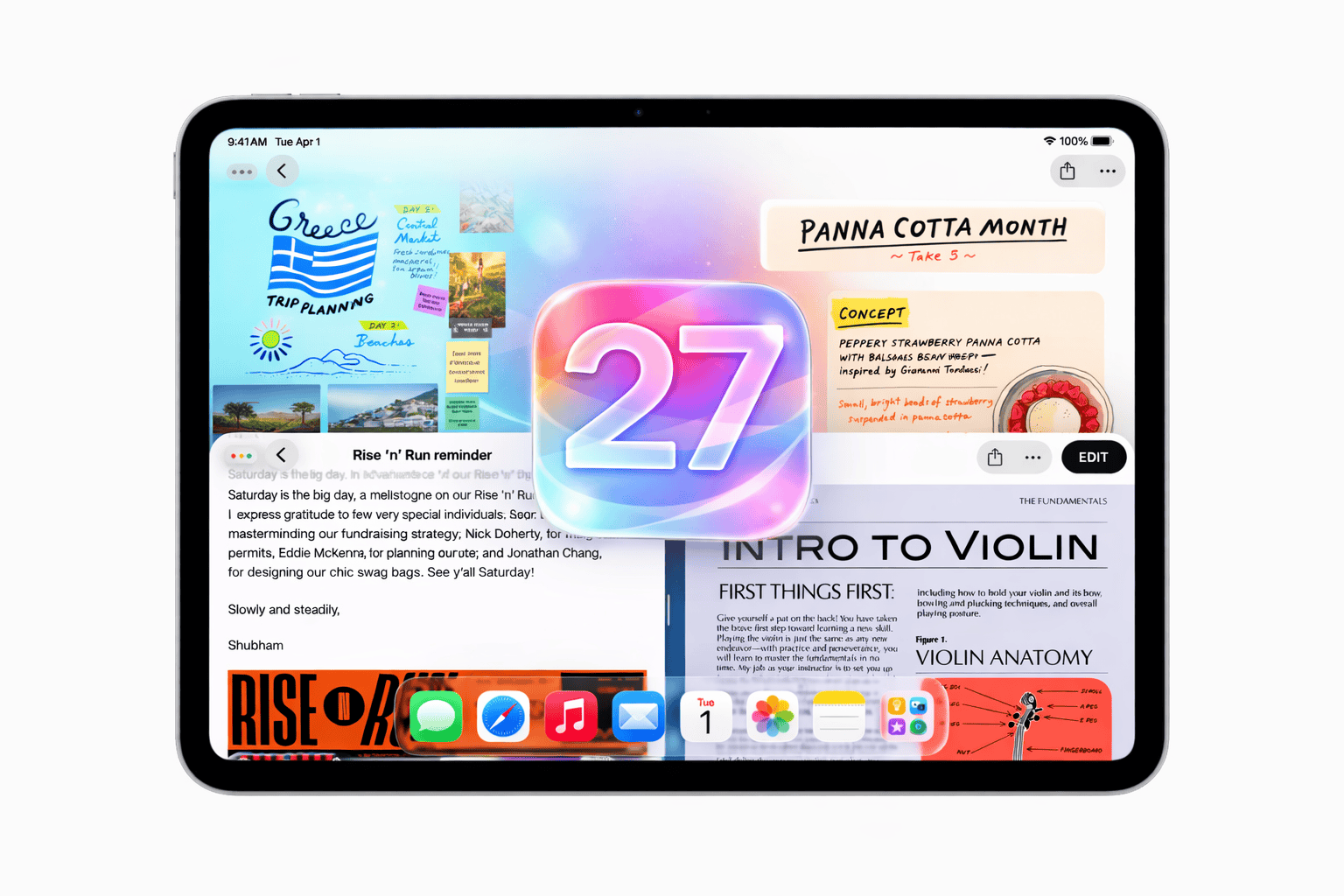
iPadOS 27 takes multitasking to unprecedented heights, building upon the revolutionary changes introduced in iPadOS 26. With the new windowing system, enhanced Stage Manager, and macOS-inspired controls, your iPad now offers a truly desktop-class experience while maintaining the touch-first simplicity that makes iPad unique.
Whether you're using an iPad Pro with an external display or an iPad mini for quick tasks, this comprehensive guide will help you master every aspect of iPadOS 27 multitasking and Stage Manager.
Understanding iPadOS 27 Multitasking
Apple completely reimagined iPad multitasking starting with iPadOS 26, and iPadOS 27 refines this experience further. Gone are the days of Split View and Slide Over limitations. The new system brings macOS-style window management to iPad while respecting touch-first interaction principles.
What's New in iPadOS 27 Multitasking
Free-Form Windows
Resize and position windows anywhere on screen with smooth animations and snap-to-grid functionality.
Stage Manager
Group related windows into stages for focused workflows. Now available on all supported iPads.
Window Tiling
Quickly arrange windows in half, quarter, or custom layouts with simple flick gestures.
Exposé
See all open windows spread out with a single gesture for easy switching and organization.
Multitasking Modes Explained
iPadOS 27 offers three distinct multitasking modes, each designed for different use cases and preferences. You can switch between them anytime in Settings.
Full Screen Apps
Traditional iPad experience
- One app at a time
- Distraction-free focus
- Multiple app instances
- Background tasks work
Windowed Apps
macOS-style multitasking
- Free-form windows
- Traffic light controls
- Window tiling
- Exposé support
Stage Manager
Organized window groups
- Window stages
- Recent apps strip
- All windowing features
- External display support
How to Set Up Stage Manager
Stage Manager transforms how you organize your iPad workspace by grouping windows into distinct "stages." Here's how to enable and configure it for maximum productivity.
Enabling Stage Manager
Open Settings
Navigate to Settings → Home Screen & Multitasking on your iPad.
Select Multitasking Mode
Under "Multitasking," choose Stage Manager from the available options.
Configure Recent Apps
Toggle "Recent Apps" to show or hide the left sidebar with your open stages.
Set Dock Visibility
Choose whether the Dock appears automatically or only when you swipe up from the bottom.
Creating and Managing Stages
Stages are groups of windows that you can switch between as a unit. Think of them as virtual desktops for your iPad.
- Create a new stage: Drag an app from the Dock or App Library to an empty area
- Add to existing stage: Drag an app onto a stage in the Recent Apps sidebar
- Remove from stage: Drag the window to another stage or close it
- Switch stages: Click on a stage in the sidebar or use trackpad gestures
Window Management Features
iPadOS 27 brings sophisticated window management tools inspired by macOS, making it easier than ever to organize your workspace.
Traffic Light Controls
Every window now features familiar macOS-style buttons in the top-left corner:
- Red button: Close the window
- Yellow button: Minimize to the Dock shelf
- Green button: Enter full screen or access tiling options (hold for menu)
Window Tiling Options
Hold the green button or flick a window to the screen edge to access tiling:
| Tiling Option | Gesture | Result |
|---|---|---|
| Left Half | Flick to left edge | Window fills left 50% |
| Right Half | Flick to right edge | Window fills right 50% |
| Top Half | Hold green + select | Window fills top 50% |
| Bottom Half | Hold green + select | Window fills bottom 50% |
| Quarters | Flick to corner | Window fills corner 25% |
| Full Screen | Double-tap green | Window maximizes |
Using Exposé
Exposé shows all your open windows spread out for easy navigation. Activate it by:
- Touch: Swipe up with one finger from the bottom edge
- Trackpad: Swipe up with four fingers
- Keyboard: Press Globe + Up Arrow
External Display Support
Connect your iPad to an external monitor for a true desktop experience. iPadOS 27 enhances external display support with native resolution and independent window management.
Requirements for External Display
- Full support: iPad with M1 chip or newer
- Cable: USB-C to HDMI, USB-C to DisplayPort, or Thunderbolt
- Mirroring only: Older iPads (display mirrors iPad screen)
What You Can Do
Independent Spaces
Run different apps and windows on each display with separate Stage Manager stages.
Drag Between Displays
Move windows between your iPad and external display with simple drag gestures.
Setting Up External Display
Connect Your Display
Use a compatible cable to connect your iPad to the external monitor.
Configure Display Settings
Go to Settings → Displays to adjust resolution and arrangement.
Enable Extended Display
Ensure "Extend Display" is selected rather than "Mirror Display."
Essential Keyboard Shortcuts
If you use a Magic Keyboard or external keyboard with your iPad, these shortcuts will dramatically speed up your multitasking workflow.
| Action | Shortcut |
|---|---|
| Open App Switcher | Globe + ↑ |
| Switch to Next App | Globe + Tab |
| Switch to Previous App | Globe + Shift + Tab |
| Open Exposé | Globe + ↑ |
| Minimize Window | Globe + M |
| Close Window | ⌘ + W |
| Tile Window Left | Globe + Ctrl + ← |
| Tile Window Right | Globe + Ctrl + → |
| Toggle Full Screen | Globe + F |
| Show All Shortcuts | Globe (hold) |
Device Compatibility
iPadOS 27 multitasking features are available across a wide range of iPad models, though some advanced features require newer hardware.
| iPad Model | Stage Manager | Windowed Apps | External Display |
|---|---|---|---|
| iPad Pro (M-series) | Full | Full | Extended |
| iPad Air (M1/M2/M3) | Full | Full | Extended |
| iPad Air (3rd gen) | Full | Full | Mirror Only |
| iPad mini (5th gen+) | Full | Full | Mirror Only |
| iPad (8th-10th gen) | Full | Full | Mirror Only |
| iPad (7th gen & older) | No | No | No |
Pro Tips for Power Users
Take your iPadOS 27 multitasking skills to the next level with these expert tips and hidden features.
Quick App Switching
Swipe left or right on the bottom edge with one finger to quickly switch between recent apps without entering the app switcher.
Drag and Drop Between Apps
Hold content with one finger, then use another finger to navigate to a different app and drop the content there.
Window Memory
iPadOS 27 remembers window positions. Close an app and reopen it—the window appears exactly where you left it.
Menu Bar Access
Swipe down from the top of an app window to reveal the new menu bar with app-specific commands and search.
Background Tasks
Apps that support the Background Tasks API can now continue processing (like exports) while you work in other apps.