
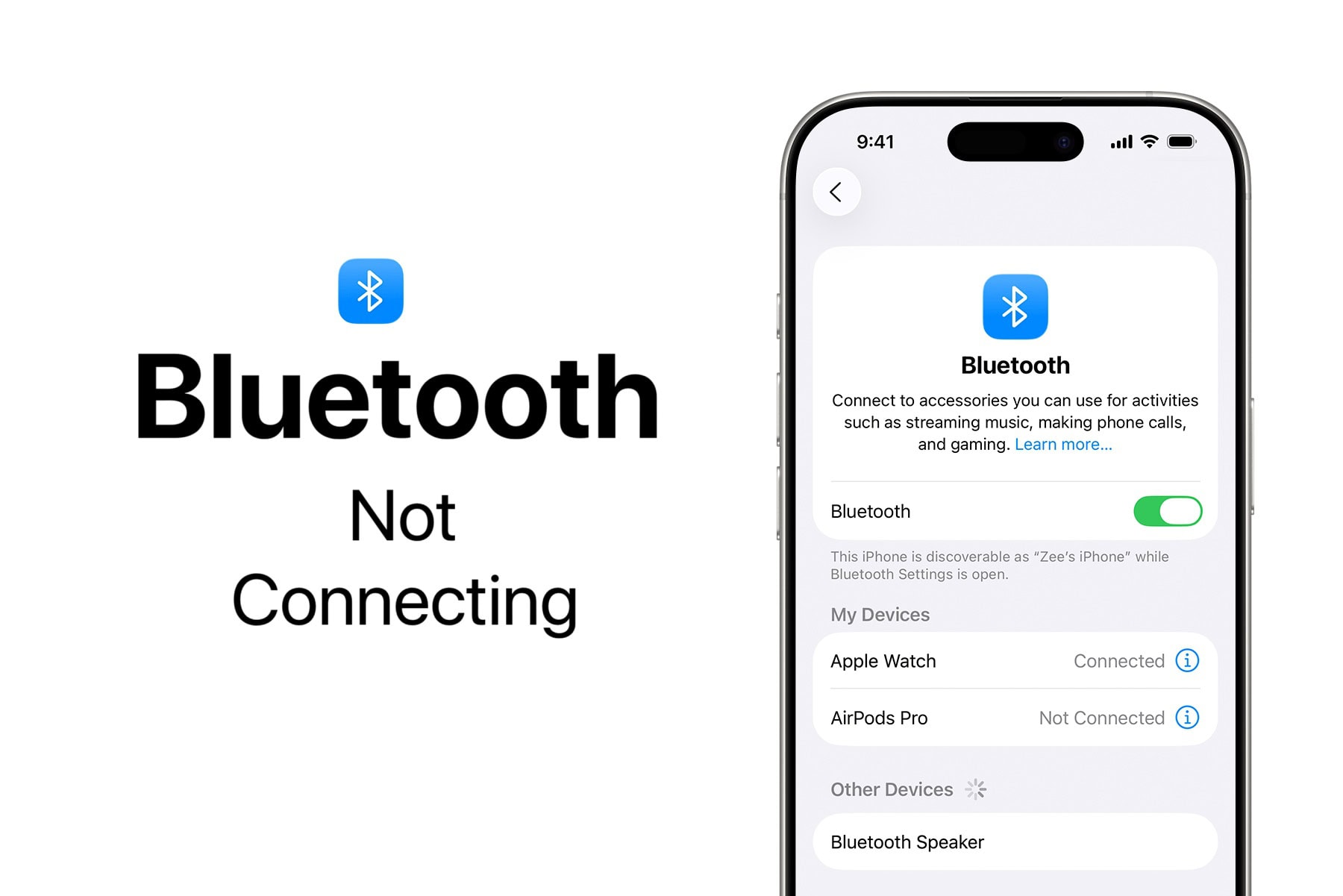
Your AirPods won't connect. Your wireless keyboard stopped working. Your car's Bluetooth system can't find your iPhone. Or devices pair but disconnect immediately. Bluetooth problems are incredibly annoying because so many accessories rely on it—headphones, speakers, keyboards, mice, car systems, fitness trackers.
I've fought with Bluetooth issues on my iPhone and Mac more times than I want to admit. Sometimes it's a simple fix like toggling Bluetooth off and on. Other times you need to dig into settings and forget devices. The frustrating part is Bluetooth rarely tells you what's actually wrong—it just fails to connect or drops randomly.
This guide covers every Bluetooth problem on iPhone, iPad, and Mac and how to fix them. I'll walk through simple solutions first, then more involved troubleshooting for persistent issues. By the end, your Bluetooth should be working reliably again.
Quick Fixes That Work Most Often
Try these simple solutions first. They solve Bluetooth problems about 50% of the time and take less than three minutes.
The Toggle Trick
1. Turn Bluetooth Off: Go to Settings (not Control Center) and toggle it off.
2. Wait: Count to 5 seconds.
3. Turn Bluetooth On: This resets the radio and clears temporary glitches.
Restart both devices
Restart your iPhone/iPad/Mac AND the Bluetooth accessory you're trying to connect.
For the accessory: Turn it off completely. Wait 10 seconds. Turn it back on. Try pairing again.
For your device: Restart using the method for your model. After restarting, try connecting again. Both devices being freshly restarted gives you the best chance of a clean connection.
Move closer together
Bluetooth has a range of about 30 feet, but walls, metal objects, and interference reduce that significantly.
- Get within 10 feet of the accessory
- Remove any obstacles between devices
- Move away from Wi-Fi routers and microwaves (they interfere with Bluetooth)
I've had AirPods that wouldn't connect from across the room but worked perfectly when I walked closer to where I left my phone.
Forget and Re-Pair the Device
If a previously working device suddenly won't connect, forgetting it and pairing fresh often fixes the problem.
- Open Settings > Bluetooth.
- Find the device in the list.
- Tap the (i) icon next to it.
- Tap Forget This Device and confirm.
Now pair it again: Put the accessory in pairing mode (check its manual—usually involves holding a button). Wait for it to appear in the Bluetooth list. Tap it to connect. Follow any pairing prompts.
On Mac: Click Control Center > Bluetooth > (i) > Forget Device. Then re-pair.
This clears corrupted pairing data that prevents proper connection. Works for me probably 70% of the time when devices stop connecting.
Check if Device is Already Connected Elsewhere
Bluetooth accessories can usually only connect to one device at a time. If your AirPods are connected to your iPad, they won't connect to your iPhone until you disconnect them from the iPad.
Check where your accessory is connected: Look at your other devices (other iPhones, iPads, Macs). Disconnect the accessory from those devices. Or turn Bluetooth off on those devices temporarily. Then try connecting from your current device.
I constantly have this issue with my AirPods. They're connected to my Mac, then I try using them with my iPhone and wonder why they won't connect. Disconnect from the Mac first, then they work fine on the iPhone.
Make Sure Device is Discoverable
Bluetooth accessories need to be in "pairing mode" to show up on your iPhone or Mac.
How to enter pairing mode varies by device:
- AirPods: Open case lid, hold button on back until light flashes white.
- Speakers/Headphones: Usually hold power button for 5+ seconds until light blinks.
Check your accessory's manual. Most devices only stay in pairing mode for 2-3 minutes, so work quickly once you activate it.
Check Battery Level
Low Battery Warning
Dead or low batteries prevent connection. Some devices refuse to connect if battery is below 10%. Plug in your accessory for 15-30 minutes and try again.
Reset Network Settings (iPhone/iPad)
This resets all wireless settings including Bluetooth, often fixing persistent connection issues.
Nuclear Option
This erases saved Wi-Fi passwords. Know your password before doing this. Go to Settings > General > Transfer or Reset iPhone > Reset > Reset Network Settings.
Remove Case or Cover
Phone cases, especially thick or metal ones, can interfere with Bluetooth signals. Test without the case: Remove your iPhone case completely. Try connecting. If it works without the case, the case was causing interference.
Reset Bluetooth Module (Mac)
Macs have a specific Bluetooth reset that can fix stubborn connection problems.
Mac Pro Tip
Hold Shift + Option together and click the Bluetooth icon in the menu bar. You'll see a debug menu (on older macOS) or use Terminal commands on newer macOS to reset the module.
Delete Bluetooth Preference Files (Mac Advanced): Go to /Library/Preferences and delete com.apple.Bluetooth.plist. Restart Mac.
Check for Interference
Common sources of interference: Wi-Fi routers (2.4GHz), Microwave ovens, USB 3.0 devices. Reduce interference by moving away from routers or unplugging USB 3.0 devices temporarily.
Reset SMC and NVRAM (Mac)
For Macs with persistent Bluetooth problems, resetting SMC and NVRAM sometimes helps. (See our full SMC Reset Guide).
Re-pair AirPods Specifically
AirPods sometimes need special steps. Put AirPods in case. Open lid. Hold button on back for 15 seconds until light flashes amber, then white. Re-pair.
Contact Apple Support or Manufacturer
If nothing works after trying everything above, you might have hardware problems. Contact Apple Support if your device won't connect to ANY Bluetooth devices. Contact the accessory manufacturer if only one specific device fails.
Final Thoughts
Bluetooth problems usually come from simple issues: devices too far apart, one device not in pairing mode, battery dead, or corrupted pairing data. Toggle Bluetooth off and on, restart both devices, forget and re-pair—those three steps fix most issues.
For stubborn problems, reset network settings on iPhone/iPad or reset the Bluetooth module on Mac. These clear out corrupted settings causing connection failures.
Good luck getting your Bluetooth working reliably again. Hopefully one of these fixes gets your devices connecting properly.