
Your Mac is acting weird. Maybe the battery isn't charging properly, or the fans are running at full blast for no reason, or the screen brightness won't adjust. You Google the problem and every forum says the same thing: "Reset your SMC and NVRAM." But what does that even mean? And how do you actually do it?
I've been using Macs for years, and I've reset SMC and NVRAM more times than I can count. Sometimes it fixes bizarre problems instantly. Other times it does nothing. But it's always worth trying because it takes less than two minutes and can't hurt your Mac.
Let me explain what these resets actually do, when you should try them, and exactly how to do them on your specific Mac. No technical jargon, no complicated steps—just simple instructions that work.
What is SMC and Why Reset It?
Tech Explained: SMC
SMC stands for System Management Controller. It's the chip that controls physical hardware functions like battery charging, fans, keyboard backlights, and sleep/wake behavior.
The SMC handles stuff like:
- Battery charging and power management
- Fan speed and temperature control
- Keyboard backlight
- Sleep and wake behavior
- Charging indicator lights
When the SMC gets confused (and trust me, it happens), you'll notice weird hardware behavior that doesn't make sense. Your fans might sound like a jet engine when you're just browsing the web. Your battery might show 50% one minute and 10% the next. Resetting it basically reboots this controller and clears out the confusion.
What is NVRAM and Why Reset It?
Tech Explained: NVRAM
NVRAM stands for Non-Volatile Random-Access Memory. It's a small memory bank that stores settings even when your Mac is turned off, like sound volume, screen resolution, and startup disk selection.
When NVRAM gets corrupted—usually after a bad shutdown or software update—you might see problems like the volume resetting to maximum every time you restart, or your Mac trying to boot from the wrong drive.
When Should You Reset SMC?
Don't just reset SMC randomly. Apple actually recommends trying it when you experience specific problems:
- Battery: Won't charge, charges slowly, or percentage jumps wildly.
- Fans: Running constantly at high speed for no reason.
- Display: Brightness won't adjust or external display isn't detected.
- Ports: USB or Thunderbolt ports not recognizing devices.
- Sleep: Mac won't go to sleep or wakes up unexpectedly.
When Should You Reset NVRAM?
Reset NVRAM when you're dealing with these specific issues:
- Volume keeps resetting after restart.
- Screen resolution changes randomly.
- Time zone resets or clock shows wrong time.
- Mac tries to boot from the wrong disk (question mark folder icon).
How to Reset NVRAM (Works on All Intel Macs)
The good news: resetting NVRAM uses the same method on every Intel Mac, whether it's brand new or ten years old.
- Shut down your Mac completely.
- Press the power button to turn it on.
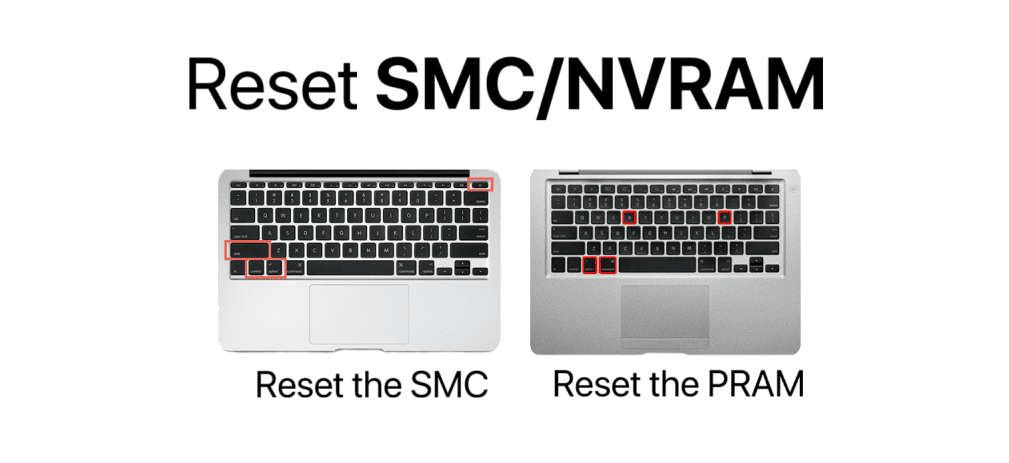
- Immediately press and hold these four keys: Command + Option + P + R.
- Keep holding all four keys for about 20 seconds.
- Release the keys when you hear the startup sound twice or see the Apple logo appear and disappear twice.
The timing matters here. You need to press those keys immediately after hitting the power button. If you're too slow, you'll just boot normally and need to try again.
How to Reset SMC (Apple Silicon Macs - M1, M2, M3)
If your Mac has an Apple Silicon chip (M1, M2, M3, or M4), resetting the SMC is ridiculously simple. Ready for this?
- Go to Apple menu → Shut Down.
- Wait for your Mac to fully shut down (screen goes black).
- Wait about 30 seconds.
- Press the power button to turn it back on.
Seriously. That's it. The SMC reset happens automatically during a cold boot process on Apple Silicon Macs. Apple redesigned how these Macs work, so the traditional key combos aren't needed.
How to Reset SMC (Intel MacBooks with T2 Chip)
Most MacBooks made between 2018 and 2020 (with Touch ID) fall into this category.
- Shut down your Mac.
- Press and hold: Left Control + Left Option + Right Shift.
- Keep holding those three for 7 seconds, then press and hold the Power button too.
- Hold all four keys for another 7 seconds.
- Release everything and wait a few seconds.
- Press the power button to turn on your Mac.
How to Reset SMC (Older Intel MacBooks)
For MacBooks made before 2018 (Non-removable battery, no T2 chip).
- Shut down your Mac.
- Press and hold: Left Shift + Left Control + Left Option.
- While holding those three, press and hold the Power button.
- Hold all four keys for 10 seconds.
- Release everything, then press Power to turn on.
How to Reset SMC (Desktop Macs - iMac, Mac mini)
Desktop Macs have the easiest SMC reset because there's no battery involved.
- Shut down your Mac.
- Unplug the power cord from the back of your Mac.
- Wait 15 seconds.
- Plug the power cord back in.
- Wait 5 seconds.
- Press the power button to turn your Mac on.
Does It Actually Work?
Honest answer: sometimes yes, sometimes no. I've had SMC resets fix bizarre fan behavior instantly. I've also had them do absolutely nothing for other problems. It's hit or miss depending on what's actually wrong with your Mac.
The thing is, resetting SMC and NVRAM can't hurt anything. You're not deleting files or changing important system settings. You're just clearing some hardware management settings and forcing them to rebuild. Worst case scenario: nothing changes and you wasted two minutes.
Common Mistakes
Wrong Keys: Using the Right Shift instead of Left Shift on older Macs won't work.
Not Holding Long Enough: You really need to hold for the full time. Count slowly.
Confusing Models: Trying Intel methods on an M1/M2/M3 Mac does nothing.
When It Doesn't Work
If you've reset both SMC and NVRAM and your problem persists, you're looking at either a software issue (try updating macOS) or a hardware failure (sensor damage, battery failure). At that point, running Apple Diagnostics (hold D during startup) or visiting an Apple Store is your next move.
Final Thoughts
Resetting SMC and NVRAM is basic Mac troubleshooting that everyone should know how to do. It's simple, safe, and often effective for fixing weird hardware behavior that doesn't have an obvious cause. Try these resets before assuming you need expensive repairs or a new Mac.
Good luck with your Mac issues. Hopefully one of these resets gets you back to normal.