
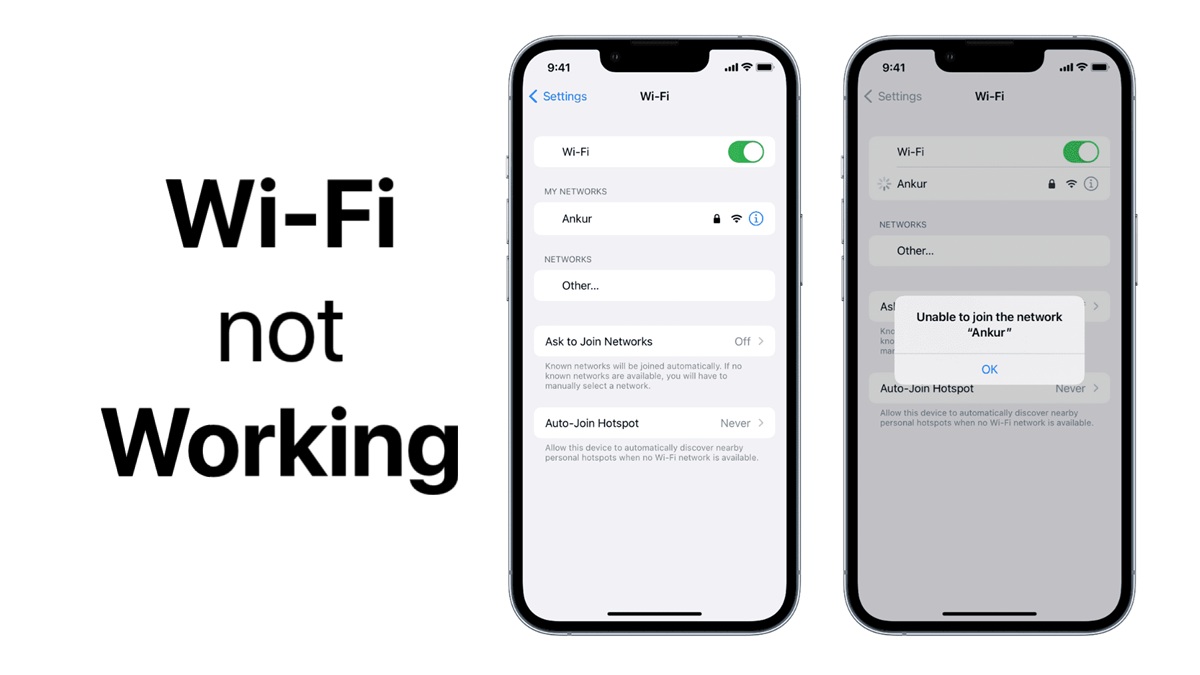
Your iPhone or iPad won't connect to Wi-Fi. Or it connects but nothing loads. Or it keeps dropping the connection every few minutes. Wi-Fi problems on iOS devices are incredibly frustrating because your phone basically becomes useless without internet—no browsing, no apps, no messages unless you're on cellular data.
I've dealt with Wi-Fi issues on my own devices and helped dozens of friends and family members fix theirs over the years. Sometimes it's a simple fix that takes 30 seconds. Other times you need to dig deeper. The annoying part is that Wi-Fi problems can have like ten different causes, so you end up trying multiple solutions until something works.
This guide walks through every fix that actually works, starting with the easiest and moving to more involved solutions. I'll explain what each fix does and when to try it. By the end, your Wi-Fi should be working again—or you'll at least know if it's a hardware problem that needs Apple's help.
Quick Fixes to Try First
Before we get into complicated troubleshooting, try these simple things. They solve Wi-Fi problems maybe 50% of the time and take less than two minutes combined.
The "First Aid" Kit
1. Toggle Wi-Fi: Turn it off in Settings, wait 5 seconds, turn it back on.
2. Airplane Mode: Turn it on for 30 seconds, then off. This resets radios.
3. Restart Device: A simple reboot clears temporary software glitches.
Restart Your Router
If the quick fixes didn't work, the problem might be your router, not your iPhone. Other devices on the same network having Wi-Fi issues? Definitely the router.
How to properly restart a router:
- Unplug the power cable from your router.
- Wait a full 30 seconds (don't rush this—actually count to 30).
- Plug it back in.
- Wait 2-3 minutes for the router to fully restart and reconnect to the internet.
I restart my router probably once a month just for maintenance because it fixes random connection issues with all my devices. Routers are basically small computers and they get glitchy if they run for months without a restart.
Forget the Network and Reconnect
If your iPhone connects to Wi-Fi but internet doesn't work, or it keeps disconnecting, try forgetting the network and connecting fresh. This forces your iPhone to create a brand new connection instead of using potentially corrupted saved settings.
- Open Settings > Wi-Fi.
- Tap the (i) icon next to your network name.
- Tap Forget This Network and confirm.
- Wait a moment, then tap the network again to rejoin (have your password ready).
I've fixed SO many Wi-Fi problems this way—probably my most successful troubleshooting step. The only downside is you need to know your Wi-Fi password.
Check If It's Just One Network or All Networks
This helps figure out if the problem is your iPhone or the specific Wi-Fi network. Try connecting to a different Wi-Fi network—a friend's house, a coffee shop, work, anywhere. Does it connect and work fine on other networks?
- If it works on other networks: Your iPhone's Wi-Fi is fine. The problem is with your home router or internet service.
- If it doesn't work on ANY network: The problem is your iPhone. Keep reading—we'll fix it.
Reset Network Settings
This is the nuclear option for Wi-Fi problems. It resets all network-related settings to factory defaults—Wi-Fi, cellular, VPN, Bluetooth, everything.
Important Warning
This erases all saved Wi-Fi passwords. You'll need to reconnect to Wi-Fi networks and re-enter passwords afterward. Make sure you know your home Wi-Fi password before doing this.
- Go to Settings > General.
- Scroll down to Transfer or Reset iPhone.
- Tap Reset > Reset Network Settings.
- Enter passcode and confirm.
This fixes probably 80% of stubborn Wi-Fi problems. All the corrupted network settings, weird DNS configurations, VPN conflicts—everything gets cleared out and rebuilt from scratch.
Update iOS to the Latest Version
Apple fixes Wi-Fi bugs in iOS updates. If you're running an older version, updating might solve your problem.
Check for updates in Settings > General > Software Update. If an update is available, tap Download and Install. Make sure you have at least 50% battery or plug in your iPhone.
Check Router Settings (Advanced)
If other devices work fine but your iPhone doesn't, there might be a router setting blocking your iPhone specifically. Things to check:
- MAC address filtering: Some routers block specific devices. Check if your iPhone's MAC address is blacklisted.
- DHCP settings: Make sure DHCP is enabled so your router assigns IP addresses automatically.
- Frequency bands: Try connecting to 2.4GHz and 5GHz bands separately.
Custom DNS Settings (Sometimes Helps)
Your iPhone uses DNS servers to convert website names into IP addresses. Sometimes the default DNS servers are slow or not working properly.
Try Google DNS
Go to Wi-Fi settings, tap (i) next to your network, scroll to Configure DNS, switch to Manual, and add server 8.8.8.8. This bypasses ISP DNS issues.
Check Date and Time Settings
This sounds weird, but incorrect date and time can cause Wi-Fi authentication problems. SSL certificates used by websites and routers depend on correct time.
Make sure Set Automatically is enabled in Settings > General > Date & Time.
Disable VPN and Private Relay
VPNs and Apple's Private Relay can sometimes interfere with Wi-Fi connections. Try turning off your VPN in Settings, and disable Private Relay in iCloud settings to see if connectivity improves.
Hardware Problems (When to Contact Apple)
If you've tried everything above and Wi-Fi still doesn't work on any network, you might have a hardware problem.
Signs of hardware failure:
- Wi-Fi toggle is grayed out and you can't turn it on.
- Wi-Fi address shows "N/A" in Settings > General > About.
- Device gets unusually hot when trying to use Wi-Fi.
At this point, contact Apple Support or visit an Apple Store. The Wi-Fi chip might be damaged and needs professional repair.
Specific Problem Solutions
- No Internet Connection: Restart router. Check if other devices have internet.
- Disconnects Frequently: Forget network and reconnect. Reset Network Settings.
- Can't Enter Password: Restart iPhone. Type password on another device to verify.
- Slow Wi-Fi: Switch between 2.4GHz and 5GHz. Move closer to router.
- Grayed Out Wi-Fi: Update iOS. Reset Network Settings. Contact Apple (likely hardware).
Final Thoughts
Wi-Fi problems are annoying but usually fixable. Start with the simple stuff—toggle Wi-Fi off and on, restart your device, restart your router. Those three steps fix most issues. If the quick fixes don't work, forget the network and reconnect.
Still not working? Reset Network Settings. Yes, you'll lose saved passwords, but it fixes most software-related Wi-Fi problems. If absolutely nothing works on any Wi-Fi network, you've probably got hardware damage. Time to contact Apple.
Good luck getting your Wi-Fi working again. Hopefully one of these solutions gets you back online quickly.