
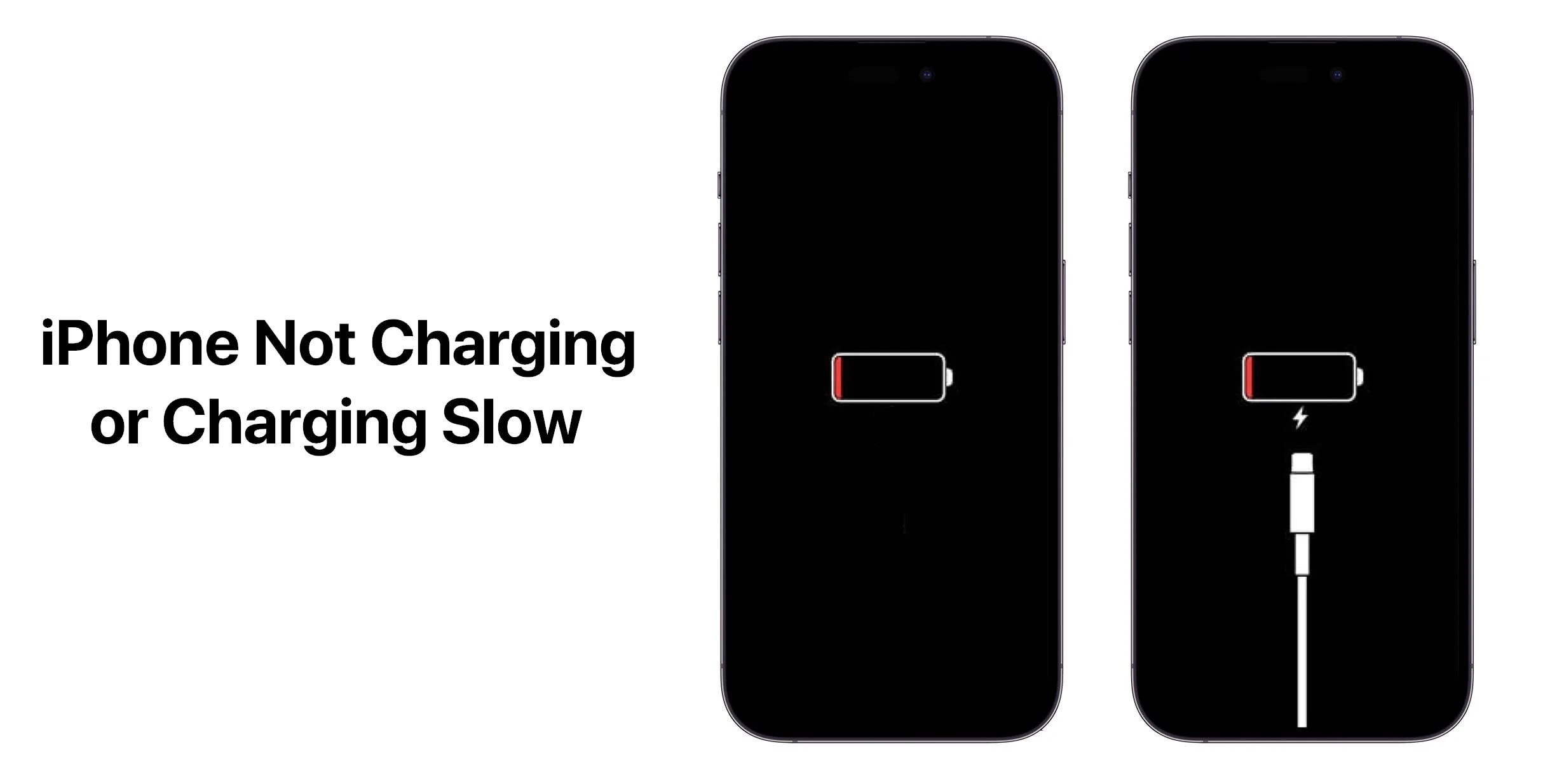
You plug in your iPhone and nothing happens. Or it charges so slowly that after an hour, the battery only went up 5%. Or it charges for a minute, stops, charges again, stops—constantly connecting and disconnecting. Charging problems are incredibly frustrating because your phone is basically useless once the battery dies.
I've dealt with charging issues on multiple iPhones over the years. Sometimes it's something simple like lint in the charging port. Other times it's a failing cable or adapter. And occasionally it's actually the battery itself dying. The tricky part is figuring out which component is causing the problem.
This guide covers every reason your iPhone might not charge properly and how to fix it. I'll walk through simple checks first, then more involved solutions. Most charging problems are fixable without spending money on repairs—you just need to know where to look.
Check the Obvious Stuff First
Before you panic or buy new cables, eliminate the simple problems. These take two minutes to check and solve about 40% of charging issues.
The Basics Checklist
1. Plug it in fully: Ensure the cable clicks firmly into the port.
2. Try a different outlet: The wall socket might be dead or have a blown fuse.
3. Check power source: If using a laptop, ensure it's awake and providing power.
Look at the lightning bolt icon. When charging, you should see a lightning bolt icon next to the battery icon in the status bar. If you don't see it, your iPhone isn't receiving power. If you see it but the battery percentage isn't increasing, power is getting through but something else is wrong.
Clean the Charging Port
This is the #1 cause of charging problems in my experience. Lint, dust, and pocket debris accumulate in the Lightning or USB-C port over time and block the connection.
- Turn off your iPhone completely.
- Get a wooden or plastic toothpick (NOT metal—you could damage the port).
- Gently scrape along the inside of the port, especially the bottom.
- You'll probably pull out a surprising amount of compressed lint.
- Use compressed air to blow out any remaining debris.
Be gentle. The port has delicate pins inside that you don't want to bend or break. Wooden toothpicks work better than metal pins because they're less likely to damage anything. I cleaned out my iPhone port once and removed a solid chunk of compacted lint the size of a pencil eraser. The port looked empty before I started digging. After cleaning, charging went from not working at all to perfectly normal.
Try a Different Cable
Charging cables fail all the time. The wires inside break, especially near the connectors where the cable bends most.
Check your cable for damage: Fraying near the Lightning/USB-C connector, exposed wires anywhere along the cable, kinks or sharp bends, or if the connector doesn't fit snugly into the port.
Even if the cable looks fine externally, the wires inside might be broken. Try borrowing a cable from a friend or family member to test. Also, use Apple-certified cables. Cheap third-party cables from gas stations or dollar stores often don't work properly. Look for cables that say "MFi Certified" (Made for iPhone).
Try a Different Power Adapter
The USB power adapter (the cube you plug into the wall) can also fail or provide insufficient power.
Test with a different adapter. Borrow one from a family member or use your iPad adapter. Make sure you're using at least 5W for regular charging, 12W or higher for faster charging, and 20W+ for fast charging on iPhone 12 and newer.
Don't use old adapters
That ancient 5W adapter from your iPhone 4 will charge modern iPhones incredibly slowly because it doesn't provide enough power. Modern iPhones support fast charging up to 20W or more. Use a more powerful adapter for reasonable charging speeds.
Check the adapter for damage: Prongs bent or broken, loose USB port, burning smell (bad sign—stop using it immediately), or excessive heat when plugged in.
Restart Your iPhone
Software glitches can prevent charging from working properly. A restart clears these out.
- iPhone 8 and newer: Press Volume Up, release. Press Volume Down, release. Hold Side button until Apple logo appears.
- iPhone 7: Hold Volume Down + Sleep/Wake.
- iPhone 6s and older: Hold Home + Sleep/Wake.
After restarting, plug in your iPhone and check if it charges normally. Sometimes iOS just needs a fresh start to recognize the charging connection.
Check for Water Damage
If your iPhone got wet, the charging port might have liquid inside preventing proper contact.
Signs of water damage: Red indicator in the SIM card tray, charging worked fine until the phone got wet, or charging is intermittent.
Liquid Detected?
Don't charge if wet. You could damage the phone. Let it dry completely (24-48 hours in a warm, dry place). Don't use rice (it leaves debris) or a hair dryer (heat damages components).
iPhones are water-resistant (not waterproof). The charging port doesn't have a waterproof seal. Even water-resistant models can have charging issues after liquid exposure.
Remove Your Phone Case
Some thick cases interfere with the charging cable connection, especially if the cable doesn't have a long connector tip. Take the case off and try charging without it. If charging works, your case is blocking the cable. MagSafe cases can also interfere if they're not properly aligned.
Update iOS
Apple fixes charging-related bugs in iOS updates. If you're running an old version, updating might solve the problem. Check for updates in Settings > General > Software Update. Install any available updates (make sure you have at least 50% battery first).
Check Battery Health
If your battery is degraded, it might charge slowly or not hold a charge properly.
Check battery health: Open Settings > Battery > Battery Health & Charging. Look at Maximum Capacity.
If Maximum Capacity is below 80%, your battery is significantly degraded and might need replacement. Below 70% and you'll definitely notice poor performance and charging issues.
Disable Optimized Battery Charging Temporarily
iOS has a feature that slows charging to 80% to preserve long-term battery health. Sometimes this feature glitches and prevents full charging.
- Open Settings > Battery.
- Tap Battery Health & Charging.
- Toggle Optimized Battery Charging off.
Try charging again. If it charges normally now, the optimization feature was causing issues. You can turn it back on after charging completes.
Check for Background Activity Draining Battery
If your iPhone charges but the percentage barely increases, apps might be using power faster than the charger provides. Heavy apps (games, navigation), high screen brightness, or background updates can cause this.
Let your iPhone charge while idle: Close all apps, turn screen brightness down, and don't use the phone. If the battery increases normally when idle but not when you're using it, the charger isn't providing enough power for active use.
Try Wireless Charging
iPhone 8 and newer support wireless charging. If wired charging isn't working, try a wireless charger to determine if the problem is the port or the battery.
Diagnostic Test
If wireless charging works: The problem is your Lightning/USB-C port or cable.
If wireless charging fails: The problem is likely the battery, charging circuit, or software.
Hard Reset (Advanced Troubleshooting)
If software is preventing charging from working, a hard reset might fix it. This is different from a regular restart—it forces the system to completely reboot. Use the button combinations mentioned earlier (Vol Up, Vol Down, Hold Side Button for newer models) and keep holding until you see the Apple logo.
Reset All Settings
This resets all your system settings without deleting data. Sometimes corrupted settings prevent charging from working. Warning: This resets Wi-Fi passwords, wallpapers, notification settings, etc. Go to Settings > General > Transfer or Reset iPhone > Reset > Reset All Settings.
Check for iOS Beta Software
If you installed iOS beta versions, charging bugs are common. Beta software is unstable by nature. Remove the beta profile in Settings > General > VPN & Device Management, restart, and update to the stable public iOS version.
Charging Port Repair or Replacement
If cleaning didn't help and different cables don't work, your charging port might be damaged and need replacement. Signs include the cable falling out easily or only charging at a specific angle.
Repair options: Apple Store (official repair, usually $69-199), third-party repair shop, or DIY (risky). I usually recommend Apple or authorized repair shops for port replacement as it's a delicate repair.
Battery Replacement
If your battery health is below 80% and you've had the iPhone for 2+ years, replacement is probably needed. New batteries completely fix slow charging and battery drain issues. It's like having a new phone.
When to Contact Apple
Contact Apple Support or visit an Apple Store if none of these fixes work, your iPhone is still under warranty, or you suspect hardware damage (like the phone getting extremely hot while charging).
Prevention Tips
Once your iPhone is charging properly again, keep it that way: Use quality cables, clean the port monthly, avoid extreme temperatures, and don't charge overnight every night without optimized charging enabled.
Understanding Charging Speeds
Final Thoughts
Charging problems are usually caused by dirty charging ports, failing cables, or weak power adapters. Clean the port thoroughly with a toothpick, try a different cable and adapter, and restart your iPhone. Those three steps fix most issues.
If the basics don't work, check battery health and look for software issues. Update iOS, reset settings, disable battery optimization temporarily.
For persistent problems that don't respond to troubleshooting, you're probably looking at hardware failure—either the charging port or battery needs replacement. Both are fixable but require professional repair in most cases.
Start with the simple fixes and work your way up. Good luck getting your iPhone charging properly again.