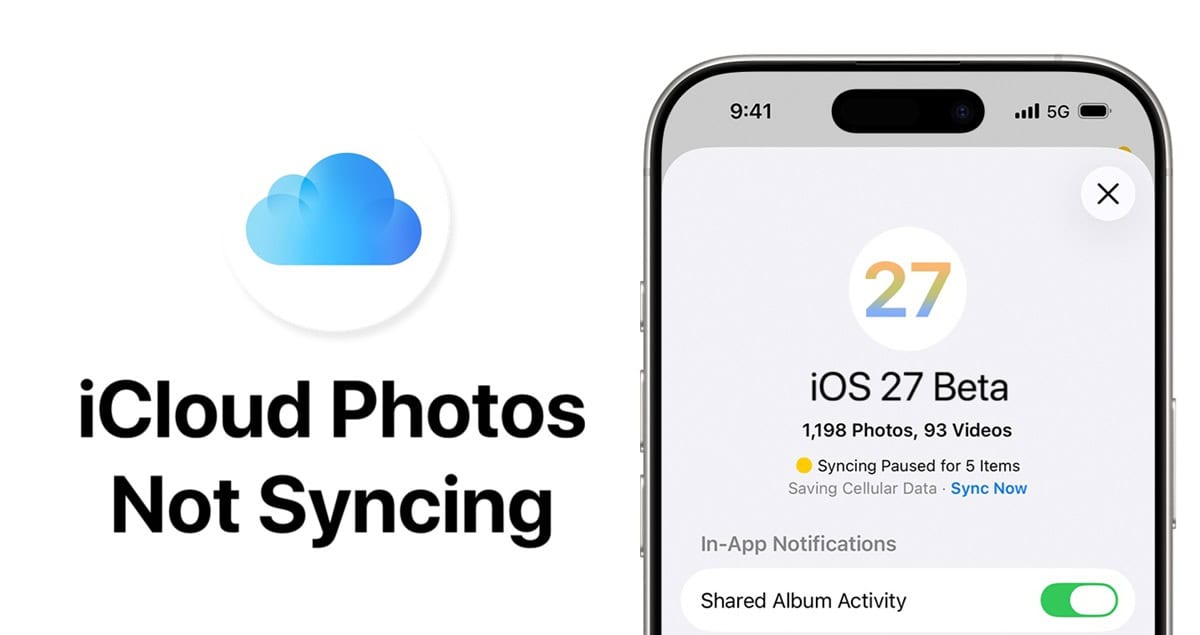
You take a photo on your iPhone, but it doesn't show up on your iPad or Mac. Or photos from days ago are still stuck "uploading" with that little dotted circle that never completes. Or your Mac shows completely different photos than your iPhone. iCloud Photos is supposed to keep everything synced seamlessly across all your devices, but when it breaks, it's incredibly frustrating.
I've dealt with iCloud Photos sync issues more times than I can count. Sometimes a photo gets stuck uploading for days. Other times my entire library just stops syncing for no apparent reason. The worst part is Apple rarely tells you what's actually wrong—you just notice photos aren't where they should be.
This guide covers every reason iCloud Photos might not sync and how to fix it on iPhone, iPad, and Mac. I'll start with quick solutions that work most often, then move into more technical fixes for stubborn problems. One of these will get your photos syncing properly again.
Quick Checks Before Troubleshooting
Before diving into fixes, verify these basics are correct. iCloud Photos won't sync if any of these are wrong.
The Basics Checklist
1. Turn it ON: Settings > [Your Name] > iCloud > Photos > Sync this iPhone.
2. Check Apple ID: Ensure all devices are signed into the SAME account.
3. Check Wi-Fi: iCloud pauses uploads on cellular unless allowed.
Make sure iCloud Photos is actually turned on. Sounds obvious, but I've helped people troubleshoot for 30 minutes before discovering iCloud Photos was disabled. On Mac: System Settings > [Your Name] > iCloud > Photos > Sync this Mac.
Why Is It Stuck? The "Big Four" Reasons
90% of sync issues come down to one of these four problems.
How to Force a Sync
Sometimes you just need to nudge it. Opening the Photos app and scrolling to the bottom of the library often triggers a sync check.
Look at the status message at the bottom. Does it say "Paused"? Tap "Resume" to force it. Does it say "Syncing with iCloud..."? Then be patient, it's working.
The "Sign Out/In" Fix (Nuclear Option)
If everything looks correct but nothing is moving, signing out of iCloud and back in usually clears the jam. This resets the sync database.
Time Warning
When you sign back in, your device has to re-scan your entire photo library to check for duplicates. For large libraries (50GB+), this "re-indexing" process can take days. Do this only if other fixes fail.
- Go to Settings > [Your Name].
- Scroll down and tap Sign Out.
- Restart your device.
- Sign back in with your Apple ID.
Optimize iPhone Storage vs. Download Originals
This setting confuses people. "Optimize iPhone Storage" keeps low-res versions on your phone to save space, and full-res in iCloud. "Download and Keep Originals" keeps full-res everywhere.
If your phone storage is full, sync will stop. Turning on "Optimize Storage" frees up space and allows syncing to resume.
Pro Tip: Patience
Uploading 10,000 photos isn't instant. It happens in the background when your phone is locked, plugged in, and on Wi-Fi. Leave your phone charging overnight to let it catch up.
Alternative Photo Storage Options
If iCloud Photos continues to frustrate you, alternatives exist:
- Google Photos: 15GB free, unlimited with subscription, works on all platforms.
- Dropbox: Good for automatic uploads, 2GB free.
- Microsoft OneDrive: 5GB free, integrates with Windows.
- Local storage: External hard drives, NAS systems.
I use both iCloud Photos and Google Photos as backup. If one fails, I have the other. Extra peace of mind.
Final Thoughts
iCloud Photos sync problems usually come from full storage, poor internet connection, or devices not being in optimal syncing conditions. Check storage space, ensure good Wi-Fi, and leave devices plugged in overnight. Those three things fix most sync issues.
For stubborn problems, toggle iCloud Photos off and on, sign out and back into iCloud, or reset network settings. These clear corrupted sync data.
Most common mistakes: iCloud storage full (happens constantly on the 5GB free plan), Low Power Mode preventing uploads, expecting instant syncing when you have thousands of photos queued, and not realizing syncing happens in background over hours or days.
Be patient with large libraries. Thousands of photos don't sync instantly. Give your devices optimal conditions (power, Wi-Fi, time) and let them work.
Good luck getting your photos syncing across all devices again. Hopefully one of these fixes gets your iCloud Photos working reliably.