
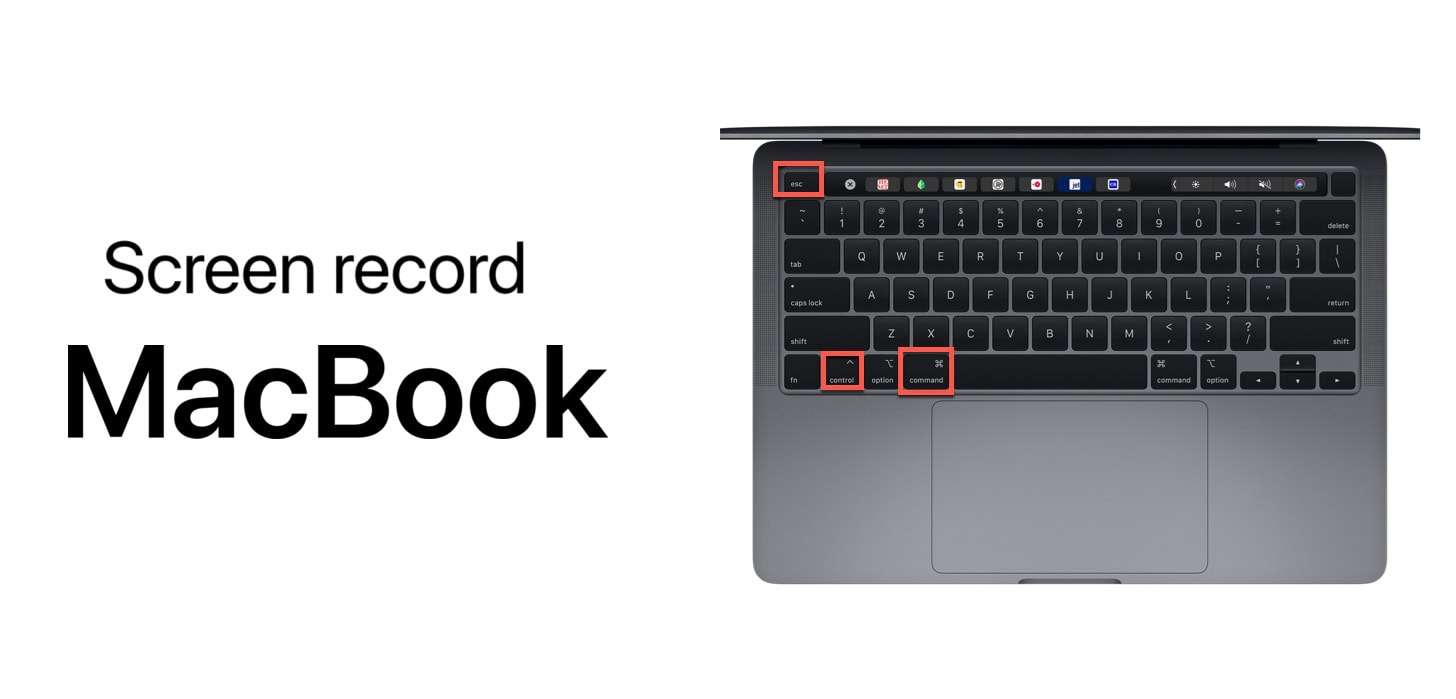
Screen recording on Mac used to require third-party software that cost money and cluttered your system. Then Apple built it directly into macOS, and honestly, most people still don't know it exists. I regularly watch colleagues fumble with questionable apps from the internet when the solution is already sitting there, built into their Mac.
I've been screen recording on Mac for years now—everything from quick tutorial videos for coworkers to capturing bugs for tech support to saving streaming content before it disappears. The built-in tools are surprisingly powerful once you know where to find them and how to use them properly.
This guide covers everything: the basic screen recording methods, audio options that confuse everyone, how to record specific windows versus your entire screen, editing your recordings, and troubleshooting the weird issues that inevitably pop up. Let's start with the simplest method.
The Quickest Way: Screenshot Toolbar
macOS has this incredibly useful tool called the Screenshot toolbar, and it handles both screenshots and screen recordings. Most people stumble onto it by accident and then forget how to access it later.
- Press Command + Shift + 5 on your keyboard.
- A control panel appears at the bottom. Look for the recording icons (usually the 4th and 5th ones).
The first three icons are for screenshots (capture entire screen, capture selected window, capture selected portion). The last two icons are what we care about: screen recording options.
To record your entire screen:
- Press Command + Shift + 5 to open the toolbar.
- Click the "Record Entire Screen" button (fourth icon from the left—looks like a circle inside a rectangle).
- Click the "Record" button that appears on the right side of the toolbar.
- Your recording starts after a 3-second countdown.
- When you're done, click the stop button in the menu bar (looks like a square inside a circle).
The recording automatically saves to your desktop by default. You'll see a thumbnail preview in the bottom-right corner of your screen—same behavior as screenshots. Tap it to trim the video or share it immediately, or ignore it and let it save.
To record just a portion of your screen:
This is what I use most often. Why record your entire screen when you only need to capture one specific app or area?
- Press Command + Shift + 5.
- Click "Record Selected Portion" (the fifth icon—rectangle with a dashed circle).
- A selection box appears. Drag the handles to resize it around what you want to record.
- Click "Record".
- Click the stop button in the menu bar when finished.
Smart Selection
The selection box is pretty smart. If you drag it over an app window, it'll snap to that window's boundaries automatically. This makes it easy to record just Safari, or just Messages, without capturing your messy desktop.
Recording Options You Should Know About
Before hitting that Record button, click the "Options" button in the Screenshot toolbar. This is where you control important settings that most people completely ignore and then wonder why their recording doesn't have sound or saved to a weird location.
Save to location:
By default, recordings save to your desktop, which gets cluttered fast if you record frequently. You can change this to Documents, Downloads, Mail, Messages, or a custom folder. I have mine set to save to a specific "Screen Recordings" folder in my Documents so everything stays organized.
Microphone settings:
This confuses everyone. You've got three options here:
- None: Records only what's happening on screen—no audio at all.
- Built-in Microphone: Records your voice while you record the screen.
Where is System Audio?
Notice what's missing? There's no built-in option to record your Mac's system audio (the sound coming from the computer itself). To do this, you need a workaround like BlackHole (explained below).
Show mouse clicks:
Turn this on and your recordings will show a visual indicator whenever you click. A black circle appears around your cursor every time you click the mouse. Incredibly useful for tutorials where people need to see exactly where you're clicking. I keep this enabled by default.
The Old QuickTime Method
Before Apple built the Screenshot toolbar, QuickTime Player was the official way to screen record. It still works and some people prefer it because the interface feels more like a traditional recording app.
- Open QuickTime Player (in Applications).
- Go to File → New Screen Recording.
- Click the Options menu next to the record button to choose mic settings.
- Click the red Record button.
- Click anywhere to record the entire screen, or drag to select a portion.
Recording Specific Applications
Sometimes you want to record just one app window. The Screenshot toolbar's "Record Selected Portion" option works, but there's an even cleaner method:
- Press Command + Shift + 5.
- Click "Record Selected Portion".
- Position your cursor over the app window you want to record. It will snap to the window.
- Click once to lock that selection.
- Press Record.
Now only that specific window gets recorded, even if you move it around on screen or resize it. The recording follows the window.
Recording System Audio (The BlackHole Method)
Since this confuses everyone, here is how to record your Mac's audio output (like a video playing on screen) along with the video.
What you need: BlackHole—a free, open-source virtual audio driver. Download the 2-channel version.
- Install BlackHole.
- Open Audio MIDI Setup (in Applications > Utilities).
- Click the + button and choose "Create Multi-Output Device".
- Check both "BlackHole 2ch" and your regular output (e.g., MacBook Speakers).
- Right-click this new Multi-Output Device and select "Use This Device For Sound Output".
Now, when you open the Screenshot toolbar's Options, select "BlackHole 2ch" as your microphone. This routes the system audio into the recording.
Recording With Your iPhone or iPad
This isn't technically screen recording on Mac, but it's related and incredibly useful. If you need to record your iPhone screen, you can do it through your Mac for higher quality.
- Connect your iPhone/iPad to your Mac via cable.
- Open QuickTime Player.
- Go to File → New Movie Recording.
- Click the arrow next to the record button and select your iPhone from the Camera list.
Common Problems and Solutions
Recording Black Screen?
You're likely trying to record DRM-protected content like Netflix or Apple TV+. This is copyright protection working as intended; the system blocks the video and records black frames instead. There is no legal workaround.
No stop button in menu bar
If the stop button disappears, press Command + Control + Escape. This force-stops the recording and saves it.
File size is enormous
Screen recordings are huge. Use HandBrake (free app) to compress them without losing much quality, or choose "High" instead of "Maximum" quality in QuickTime settings.
Wrapping Up
Screen recording on Mac is built right into macOS and surprisingly capable once you know where to look. Command + Shift + 5 is the magic shortcut that unlocks everything.
Start with the basics—record a small portion of your screen, add voice narration. Once you're comfortable, try the advanced stuff like BlackHole for system audio. Good luck with your recordings!