
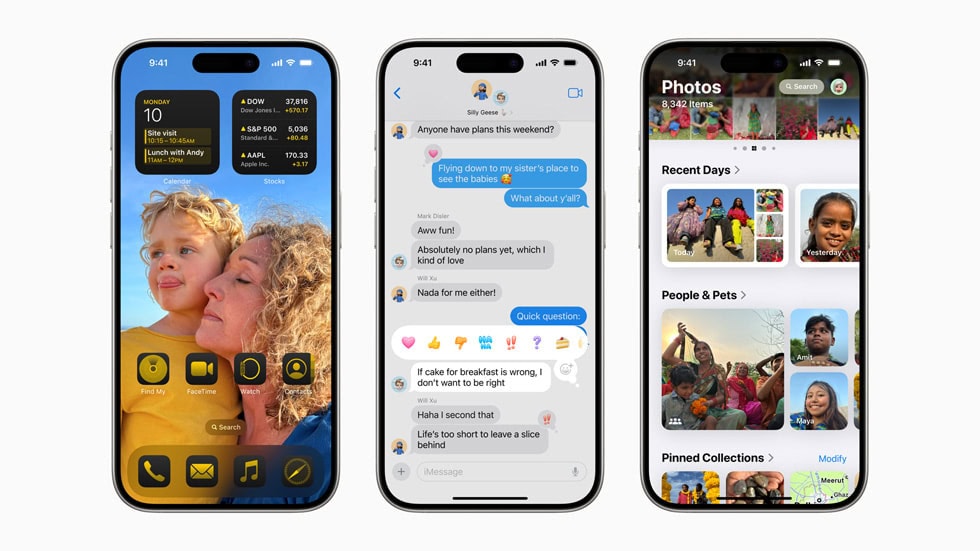
iOS 18 is finally here, bringing the highly anticipated Apple Intelligence features, advanced Home Screen customization, and a completely redesigned Control Center. While the public release isn't until September, you don't have to wait. By installing the iOS 18 Developer Beta, you can experience the future of iPhone today.
In the past, you needed a paid $99/year Developer Account to get these updates. However, Apple has changed the rules. Now, anyone can download the iOS 18 Developer Beta for free using a configuration profile or by signing in with a free Apple ID.
This guide will show you the fastest, safest way to download iOS 18 beta on your iPhone.
Beta Warning
This is pre-release software. Expect bugs, reduced battery life, and some app incompatibility. We strongly recommend installing this on a secondary device, or at least creating a full archived backup before proceeding. Do not install on your main work phone if you rely on it for critical tasks.
Is Your iPhone Compatible?
Before you download, ensure your device supports iOS 18. Generally, if your phone supports iOS 17, it supports iOS 18. However, Apple Intelligence features are limited to iPhone 15 Pro models and newer.
- iPhone 16 Series (All models)
- iPhone 15 Pro & Pro Max (Supports AI)
- iPhone 15 & 15 Plus
- iPhone 14 Series
- iPhone 13 Series
- iPhone 12 Series
- iPhone SE (2nd & 3rd Gen)
- iPhone XR, XS, XS Max
Step 1: The "No-Regrets" Backup
We cannot stress this enough: iCloud backups are not enough if you want to downgrade later. If you install iOS 18 and hate it, you cannot restore an iOS 18 iCloud backup onto an iOS 17 device. You need an "Archived Backup" on your computer.
How to Archive
Connect iPhone to PC/Mac > Open Finder/iTunes > Select "Back up all data to this computer" > Click "Back Up Now". Once finished, click "Manage Backups", right-click your new backup, and select Archive. This locks it so it won't be overwritten.
Step 2: Download iOS 18 Beta Profile
The easiest way to trigger the OTA (Over-the-Air) update is by installing the beta configuration profile. This tells Apple's servers that your device is authorized to receive the developer beta.
Download iOS 18 Configuration Profile
This small file unlocks the Developer Beta option in your settings. Verified safe and direct from Apple servers.
Size: 14KB • Type: .mobileconfig • Requires Reboot
- Tap the Download Profile button above using Safari on your iPhone.
- A popup will ask permission. Tap Allow.
- Tap Close when it says "Profile Downloaded".
- Open your iPhone Settings app.
- Tap the new "Profile Downloaded" section near the top.
- Tap Install in the top right, enter your passcode, and tap Install again.
- Restart your iPhone if prompted (highly recommended).
Step 3: Install the Update
Now that the profile is installed, your iPhone knows where to look for the beta.
- Go to Settings > General > Software Update.
- Wait for it to refresh. You should see a new option: Beta Updates.
- Tap it and select iOS 18 Developer Beta.
- Go back, and the iOS 18 update should appear.
- Tap Update Now.
Speed Tip
The update is large (often 6GB+). Connect to a fast Wi-Fi network and plug in your charger. Installations require at least 50% battery or 20% while charging.
Troubleshooting Common Issues
Update Not Showing Up?
If you installed the profile but don't see the update:
- Restart your iPhone: This is the most common fix.
- Check Apple ID: Ensure you are signed in with the same Apple ID used for the Apple Developer website (if applicable).
- Toggle Beta Updates: Go to Software Update > Beta Updates, switch it "Off", wait 5 seconds, then switch back to "iOS 18 Developer Beta".
"Update Requested" Stuck?
This means Apple's servers are busy. This is common on launch day. Do not restart; just wait. If it takes more than 30 minutes, toggle Wi-Fi off and on, or try deleting the update storage (Settings > General > iPhone Storage) and trying again.
Battery Drain?
It is normal for battery life to be terrible for the first 24-48 hours after a major update. Your iPhone is re-indexing spotlight, photos, and files in the background. Give it two days before judging the battery performance.
Want to go back?
If iOS 18 is too buggy for you, you can downgrade back to iOS 17. However, you will need a computer.
View Downgrade Guide