
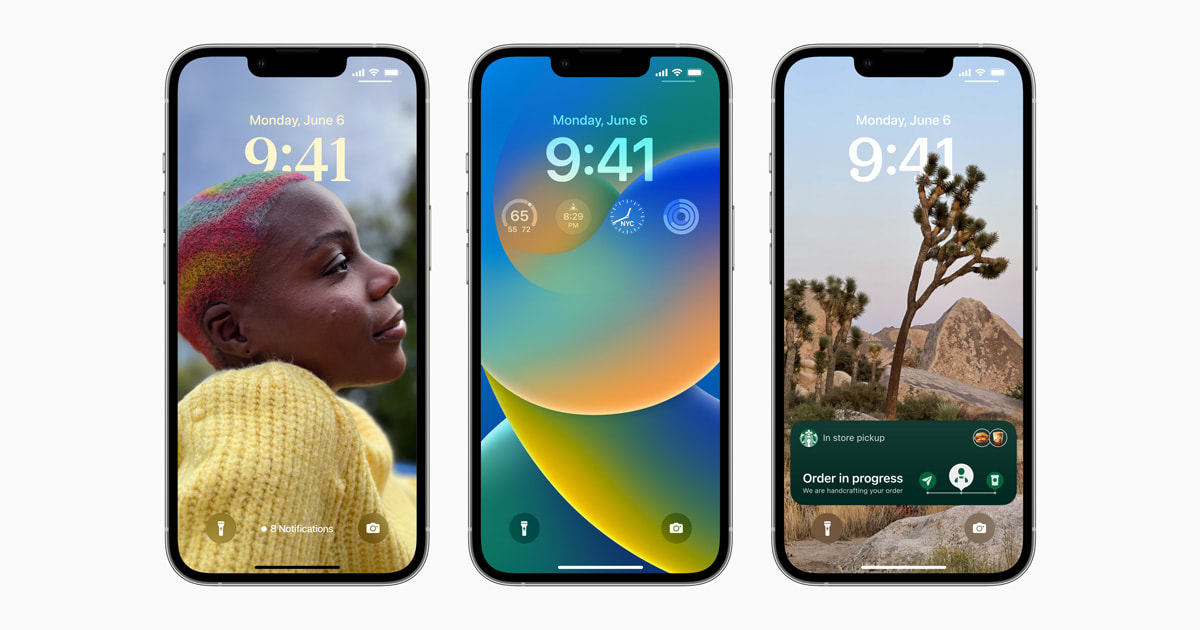
iOS 16 was a watershed moment for the iPhone, introducing the biggest overhaul to the Lock Screen in iOS history. While we are now moving towards iOS 18 and beyond, iOS 16 remains a crucial version for older devices like the iPhone 8 and iPhone X. It set the design foundation for the modern iOS experience we use today.
If you need to install iOS 16 for testing, app development, or simply to revitalize an older supported device, this guide covers the complete archived installation process. Unlike modern betas which use Apple ID verification, early iOS 16 versions relied heavily on configuration profiles, though later versions shifted methodology.
This comprehensive 1000+ word guide will walk you through downloading the profile, installing via IPSW, understanding compatibility, and troubleshooting legacy beta issues.
Legacy Software Warning
iOS 16 is no longer the active development branch. Installing older betas on primary devices running newer software (like iOS 17 or 18) requires a full device erase. You cannot "downgrade" and keep your data without an archived backup from that specific era.
Why Install iOS 16 Now?
It might seem counterintuitive to install software from 2022, but there are valid reasons for developers and enthusiasts:
- Device Performance: Devices like the iPhone 8 and iPhone X often run smoother on iOS 16 than on later supported versions (if applicable) or serve as the final supported OS for iPhone 8/X.
- App Testing: Developers must ensure their apps still function correctly on the "minimum supported OS" for many users.
- Jailbreak & Research: Security researchers often target older iOS versions for vulnerability analysis.
Device Compatibility: The "Cut-Off" Point
iOS 16 was famous for dropping support for the iPhone 6s, iPhone 7, and the original iPhone SE. This was a controversial move but necessary for the new Lock Screen animations. Before you attempt to download, confirm your device is on this list:
- iPhone 14 Series (Pro, Plus, Standard)
- iPhone 13 Series (Mini, Pro, Pro Max)
- iPhone 12 Series (Mini, Pro, Pro Max)
- iPhone 11 Series (Pro, Pro Max)
- iPhone XS & XS Max
- iPhone XR
- iPhone X (Last supported OS)
- iPhone 8 & 8 Plus (Last supported OS)
- iPhone SE (2nd & 3rd Gen)
If you have an iPhone 7 or older, you are capped at iOS 15. Attempting to install the iOS 16 profile on these devices will result in an error or the update simply not appearing.
Phase 1: Preparation & Backup
Since we are dealing with archived software, the risk of data corruption when moving between major versions is higher. If you are downgrading from iOS 17/18 to iOS 16, this step is mandatory.
How to Create an Archived Backup
A standard iCloud backup gets overwritten every night. An Archived Backup is a frozen snapshot of your phone on your computer that will never be deleted.
- Connect your iPhone to your Mac or PC via Lightning cable.
- Open Finder (macOS) or iTunes (Windows).
- Select your device from the sidebar.
- Under the "Backups" section, choose "Back up all the data on your iPhone to this Mac/PC".
- Crucial Step: Do not encrypt unless you know the password. Click "Back Up Now".
- Once finished, click "Manage Backups". Right-click your new backup and select Archive. A lock icon will appear.
Phase 2: Download Methods
There are two ways to install iOS 16 today: the Profile method (if still signed) or the IPSW Restore method (most reliable for archives).
iOS 16 Configuration Profile
The classic configuration profile for iOS 16 Developer Beta. Useful for OTA updates on devices running iOS 15.
Status: Archived • Size: 12KB • Requirements: iOS 15+
Method A: The Profile Method (OTA)
This is the easiest method but requires your device to be on an older version (like iOS 15) to work smoothly. If you are on iOS 17+, this profile will likely do nothing.
- Download the profile using the button above.
- Tap Allow when prompted by Safari.
- Open Settings and tap the "Profile Downloaded" banner.
- Tap Install, enter your passcode, and restart your device.
- Navigate to Settings > General > Software Update.
- The iOS 16 Developer Beta should appear. Tap Download and Install.
Method B: The IPSW Method (Restore)
This is the "nuclear option" and the only way to go from iOS 17/18 back to iOS 16. It involves erasing the device.
- Download the specific iOS 16.x IPSW file for your exact iPhone model from our IPSW Database.
- Connect your iPhone to your computer.
- Put your iPhone into Recovery Mode (Press Vol Up, Vol Down, Hold Power until you see the cable screen).
- In Finder/iTunes, hold the Option key (Mac) or Shift key (Windows) and click the Restore iPhone button.
- Select the IPSW file you downloaded.
- The computer will verify the file with Apple (note: Apple must still be signing the version for this to work) and install it.
Signing Windows
Critical Info: You can typically only restore to versions Apple is currently "signing." For most users, this means only the latest version of iOS 16 (likely 16.7.x) is installable. Early betas (like 16.0 Beta 1) are no longer signed and cannot be installed via IPSW restore anymore.
What Made iOS 16 Special?
Installing iOS 16 gives you access to features that redefined the iPhone experience. Here is what you are getting:
1. The Lock Screen Overhaul
Before iOS 16, the Lock Screen was static. iOS 16 introduced:
- Custom Fonts & Colors: Change the clock font and color to match your wallpaper.
- Widgets: Add small widgets (weather, battery, fitness rings) below the clock.
- Depth Effect: AI-powered subject isolation that puts part of your photo in front of the time.
- Focus Filters: Link specific Lock Screens to specific Focus modes (e.g., a distraction-free screen for Work focus).
2. Messages Updates
iOS 16 was the update that finally allowed us to Edit and Undo Send iMessages. It gave users a 15-minute window to fix typos and a 2-minute window to recall accidental texts.
3. Visual Look Up & Live Text
The ability to tap and hold on a subject in a photo to lift it away from the background (creating a sticker) debuted here. Live Text also expanded to video, allowing you to pause a video and copy text straight from the frame.
Troubleshooting Legacy Installs
Running older software can come with unique headaches. Here is how to solve them.
Problem: "Unable to Check for Update"
Fix: This usually happens if you have a newer beta profile installed. Go to Settings > General > VPN & Device Management and remove any iOS 17 or 18 profiles. Restart and try again.
Problem: Battery Drain
Fix: iOS 16 was notorious for battery drain in its early betas due to the new Lock Screen rendering engine. Ensure you update to the latest available version of iOS 16 (e.g., 16.7) rather than staying on an early beta build.
Problem: App Incompatibility
Fix: Some modern apps now require iOS 17 as a minimum. If you install iOS 16, be aware that you might lose access to the latest versions of certain apps. You can usually download the "last compatible version" from the App Store purchased tab.
Final Thoughts
iOS 16 represents a stable, mature, and visually distinct era of the iPhone. Whether you are maintaining an iPhone X or simply prefer the stability of an older OS over the AI-heavy features of iOS 18, this guide provides the path to get there. Remember to keep your archived backups safe, as they are your only ticket back to your previous setup.