
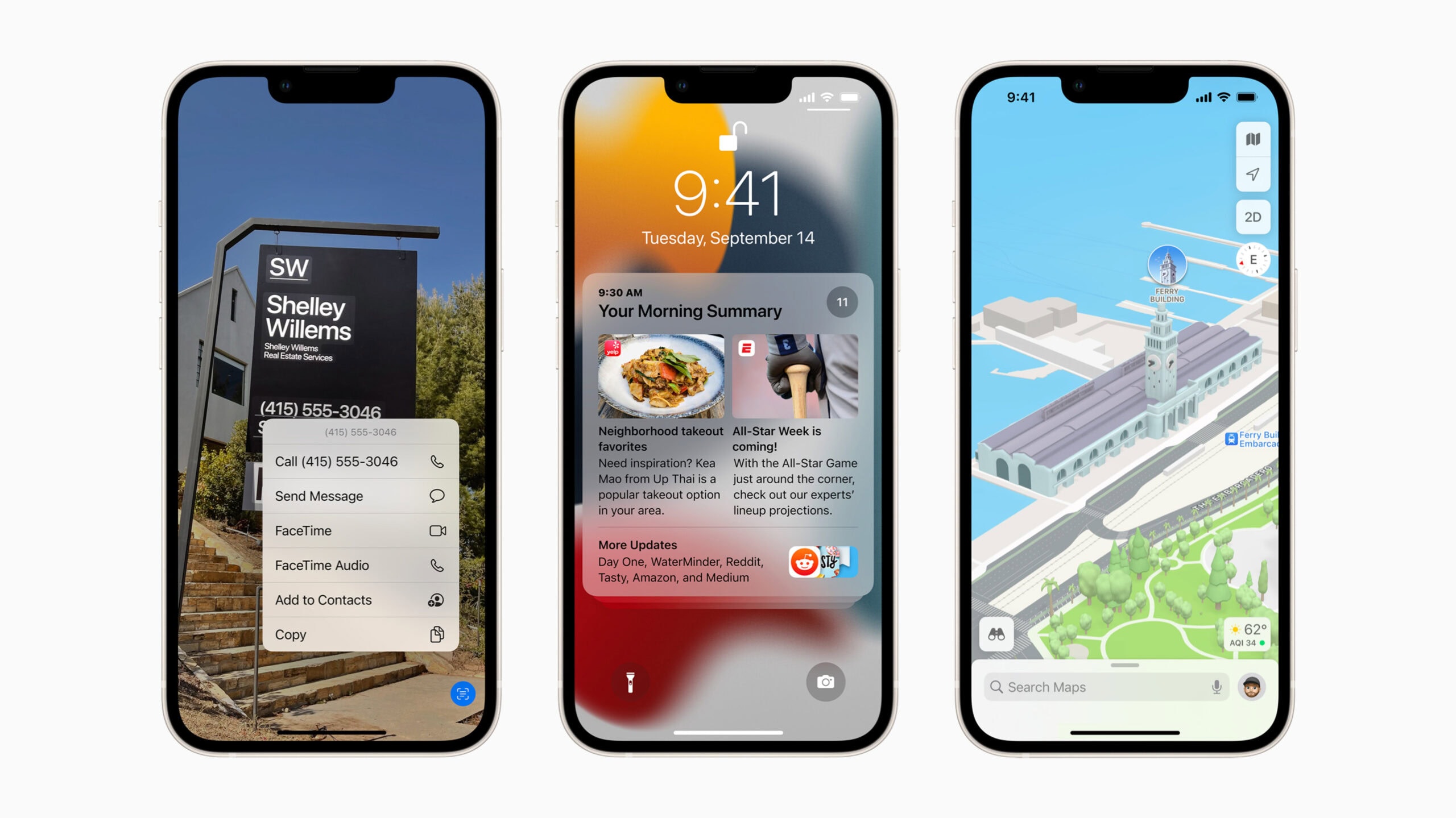
iOS 15 was released in 2021 with a focus on productivity, privacy, and shared experiences. While it may seem like ancient history in the tech world, iOS 15 holds a special place as the final supported operating system for several iconic devices, including the iPhone 6s, iPhone 7, and the original iPhone SE. For millions of users holding onto these classic devices, iOS 15 is the end of the line.
If you are looking to install iOS 15 today, you are likely either revitalizing an older device, testing app compatibility for legacy users, or simply exploring the history of iOS. This guide serves as a complete archive for downloading and installing the iOS 15 Developer Beta.
In this 1000+ word deep dive, we will cover the specific download methods for legacy hardware, the features that defined this era (like Focus Modes and SharePlay), and how to safely maintain an older device in a modern app ecosystem.
End of Life Warning
iOS 15 is no longer receiving major feature updates. While Apple occasionally releases security patches (like iOS 15.8), app support is dwindling. Many banking and social media apps now require iOS 16 or later. Install this only if your device cannot run a newer version.
The "Classics" Compatibility List
iOS 15 is famous for its incredible device support, running on phones as old as the 2015 iPhone 6s. If you have one of the devices below, iOS 15 is your maximum upgrade path:
- iPhone 7 & 7 Plus: The A10 Fusion chip handles iOS 15 well, but cannot run iOS 16.
- iPhone 6s & 6s Plus: The legendary A9 devices. iOS 15 is their swan song.
- iPhone SE (1st Gen): The original compact favorite.
- iPod Touch (7th Gen): The last iPod touch model.
Note: Newer devices (iPhone 8 through iPhone 13) can also run iOS 15, but they are capable of upgrading to iOS 16, 17, or 18.
Phase 1: Protecting Legacy Data
Working with older devices often means working with aging batteries and storage chips. Data protection is critical before attempting any beta installation or restore.
The iTunes Backup (Legacy Style)
Since we are dealing with older hardware, local backups via iTunes (on PC) or Finder (on Mac) are faster and more reliable than iCloud, especially if you have limited iCloud storage.
- Connect your iPhone via Lightning cable.
- Trust the computer on your iPhone screen.
- Select "Back Up Now" in Finder/iTunes.
- Pro Tip: Select "Encrypt local backup" to save your Health data and passwords.
- Once complete, archive the backup so it doesn't get overwritten.
Phase 2: Installation Methods
For iOS 15, the "Beta Profile" method is largely obsolete because the signing windows for early betas have closed. The most reliable way to get iOS 15 on a device today is via the latest signed IPSW file (usually iOS 15.8.x).
iOS 15 Configuration Profile
Access the legacy configuration for iOS 15. Primarily for historical reference or specific downgrade scenarios.
Status: Legacy • Version: 15.x • Requirements: iPhone 6s or newer
Method A: The IPSW Restore (Recommended)
To get a clean install of the latest version of iOS 15:
- Go to our IPSW Downloads page and find your device (e.g., iPhone 7 Global).
- Download the green-labeled (signed) iOS 15.x file.
- Connect your iPhone to the computer.
- Mac: Hold Option and click "Restore iPhone".
- Windows: Hold Shift and click "Restore iPhone".
- Select the file and let the process run. This will wipe the device and install iOS 15.
Defining Features of iOS 15
When you install iOS 15, you aren't just getting security patches. You are getting the features that shifted the iPhone towards productivity and remote connection.
Focus Modes
iOS 15 introduced Focus. Instead of just "Do Not Disturb," you can create profiles for Work, Sleep, Gaming, and Personal time. Each mode can filter notifications, hide specific home screen pages, and signal to others in iMessage that you are busy.
1. SharePlay & FaceTime
Launched during the pandemic era, SharePlay allowed users to watch movies, listen to music, or share screens in real-time over FaceTime. It also brought Voice Isolation (which kills background noise) and Portrait Mode for video calls.
2. Live Text (Device Dependent)
If you have an iPhone XS or newer running iOS 15, you can select text directly from the camera or photos. Note: This feature requires an A12 Bionic chip, so it won't work on the iPhone 7 or 6s even with iOS 15 installed.
3. Safari Redesign
iOS 15 controversial moved the address bar to the bottom of the screen to make it easier to reach with one thumb. It also introduced Tab Groups, allowing you to organize your browsing habits significantly better.
Legacy Device Troubleshooting
Running modern(ish) software on 2015 hardware can be taxing. Here is how to keep your iPhone 6s or 7 running smoothly on iOS 15.
Problem: Sluggish Performance
Fix: iOS 15 indexes data heavily. On older A9/A10 chips, this can slow the phone down. Go to Settings > Accessibility > Motion and turn on Reduce Motion. Also, disable Background App Refresh for apps you don't use often.
Problem: Battery Drain
Fix: Batteries degrade over time. If your iPhone 7 is struggling, check Settings > Battery > Battery Health. If it is below 80%, iOS 15 will throttle performance to prevent shutdowns. A battery replacement is the best fix.
Problem: "App Requires iOS 16"
Fix: This is becoming common. If you try to download an app and it says "Requires iOS 16," try downloading it from your "Purchased" list in the App Store. Sometimes, developers allow you to download the last compatible version for your OS.
Preserving the Legacy
iOS 15 is a robust, feature-rich operating system that serves as the final chapter for some of Apple's most popular iPhones. By following this guide, you ensure that your trusty iPhone 6s, 7, or SE remains functional and secure for as long as possible. Whether you are archiving it for a collection or using it as a daily driver, iOS 15 offers a stable and modern experience.