iOS 27 Beta Is Completely Free — Here's Why
Many guides still claim you need to pay $99 for the Apple Developer Program to install iOS Developer Beta. That information is outdated. Two major changes simplified iOS beta installation:
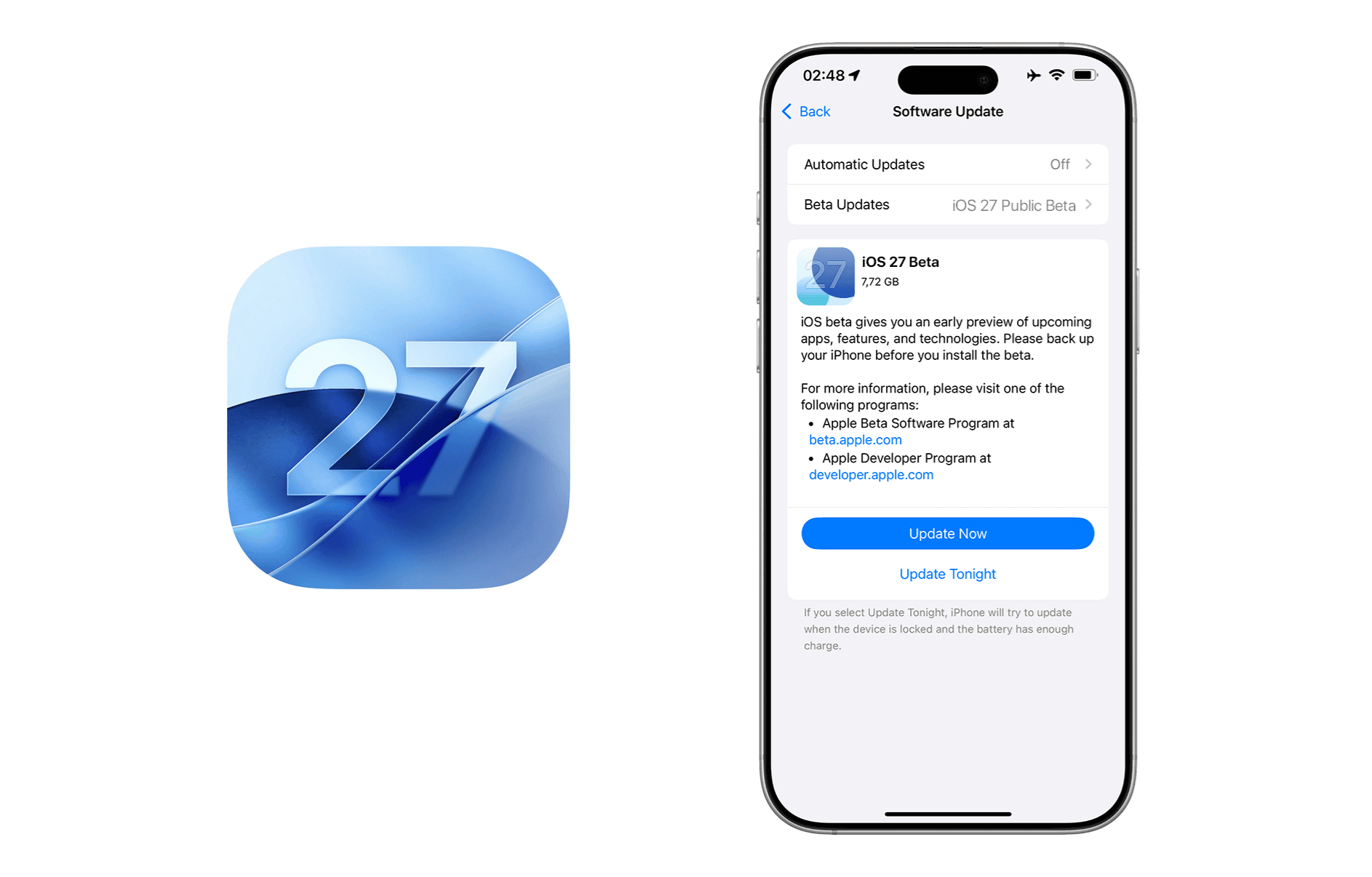
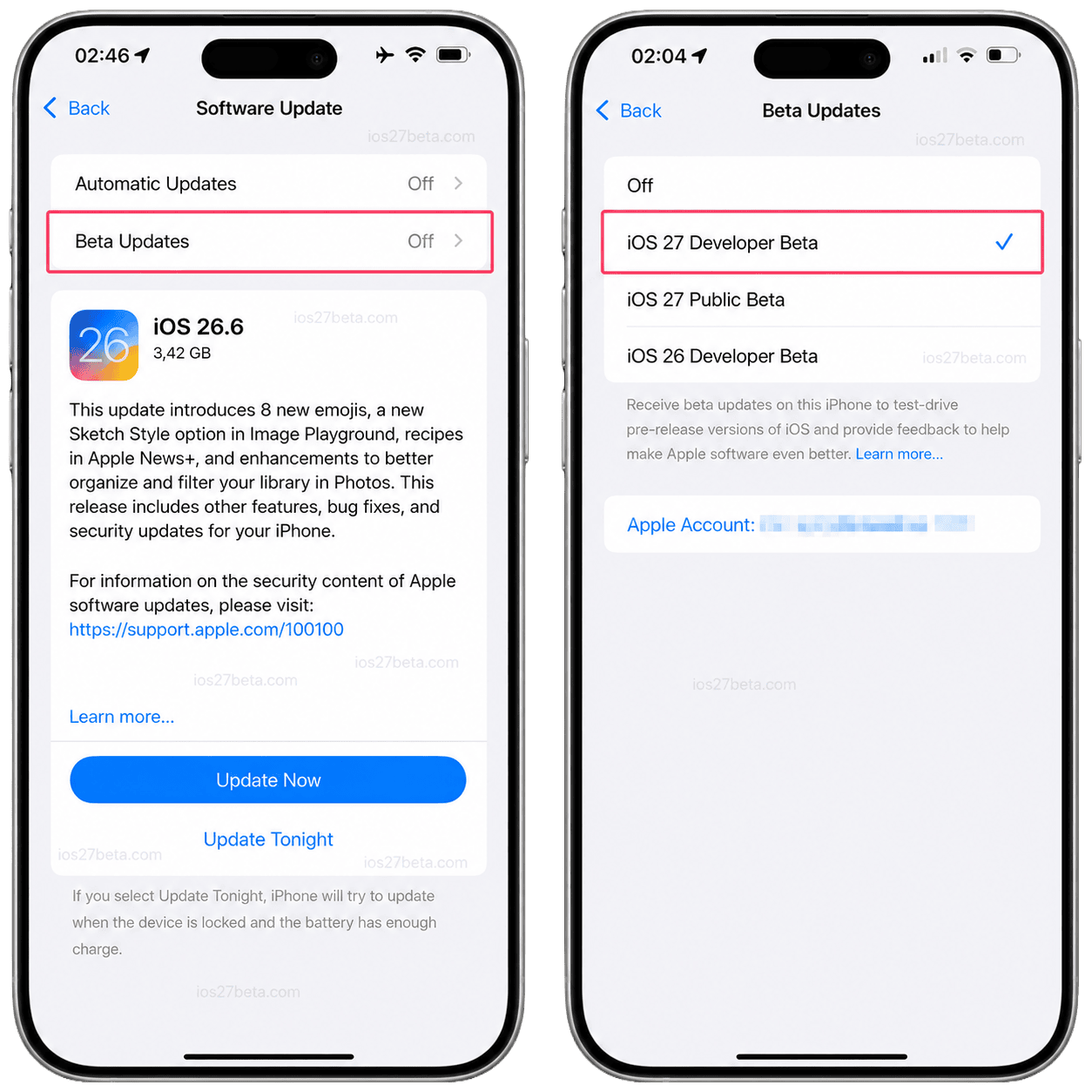
- iOS 16.4 (March 2023) — Apple removed beta configuration profiles. No more downloading .mobileconfig files from third-party sites. Beta enrollment moved into Settings → General → Software Update → Beta Updates.
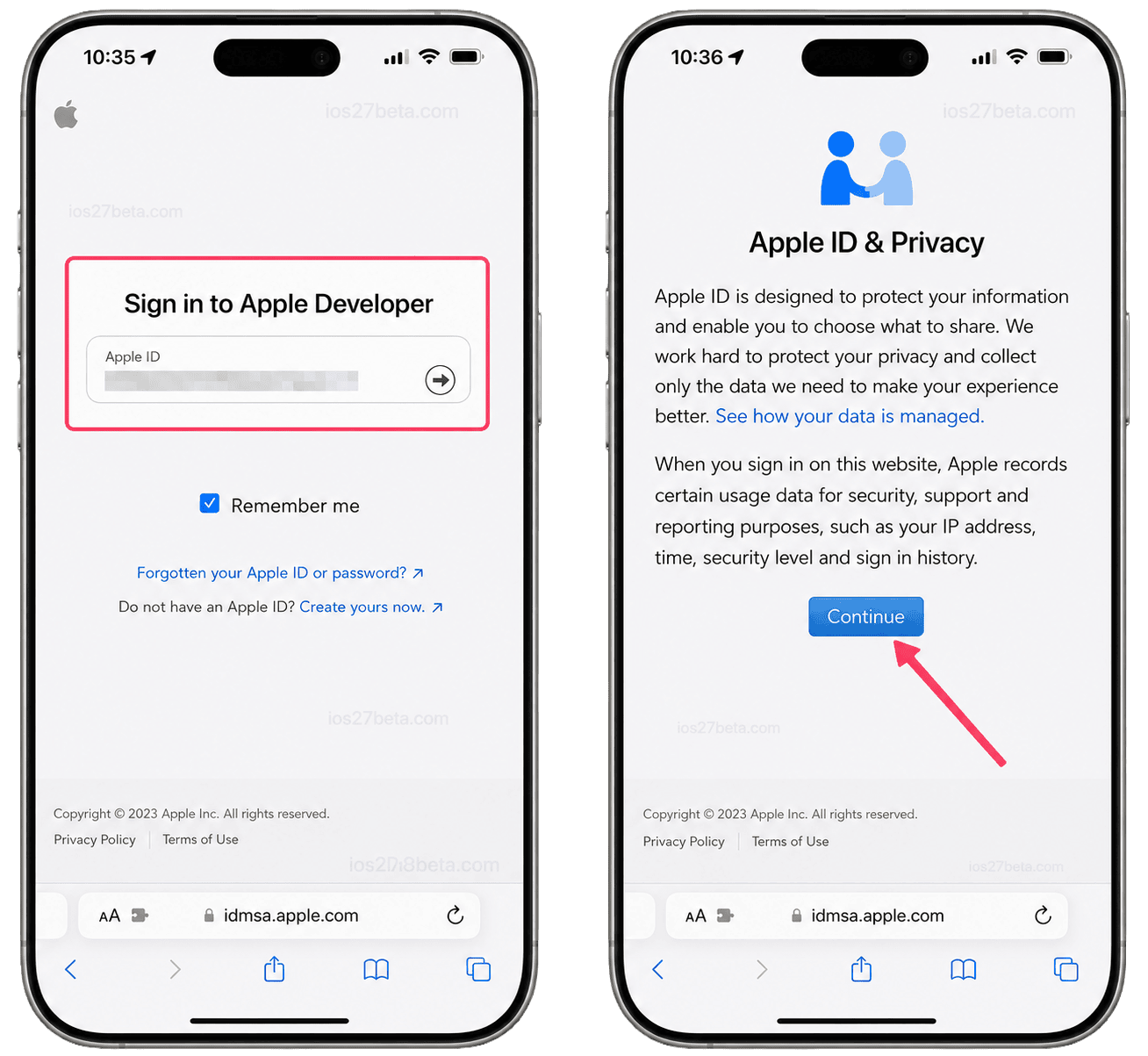
- June 2023 (WWDC) — Apple opened the Developer Beta to anyone with a free Apple ID. The $99/year Apple Developer Program is now only required for publishing apps to the App Store and accessing Xcode developer tools — not for beta software access.
Public Beta vs Developer Beta: Which Should You Choose?
| Feature | Public Beta | Developer Beta |
|---|---|---|
| Cost | Free | Free |
| Requires | Free Apple ID | Free Apple ID |
| iOS 27 release date | Mid-July 2026 | June 8, 2026 (WWDC) |
| Update frequency | Every 2–4 weeks | Every 1–2 weeks |
| Stability | More stable | Less stable |
| Safe for daily use | ✓ | ✗ |
| Enrollment URL | beta.apple.com | developer.apple.com |
| Best for | Most users | Developers, enthusiasts |
Supported iPhones for iOS 27 Beta
- iPhone 17 Pro Max
- iPhone 17 Pro
- iPhone Air
- iPhone 17
- iPhone 17e
- iPhone 16 Pro Max
- iPhone 16 Pro
- iPhone 16 Plus
- iPhone 16
- iPhone 16e
- iPhone 15 Pro Max
- iPhone 15 Pro
- iPhone 15 Plus
- iPhone 15
- iPhone 14 Pro Max
- iPhone 14 Pro
- iPhone 14 Plus
- iPhone 14
- iPhone 13 Pro Max
- iPhone 13 Pro
- iPhone 13
- iPhone 13 mini
- iPhone 12 Pro Max
- iPhone 12 Pro
- iPhone 12
- iPhone 12 mini
- iPhone 11 Pro Max
- iPhone 11 Pro
- iPhone 11
- iPhone SE (2nd gen+)
For a complete compatibility breakdown, including iPad and Apple Intelligence requirements, see our iOS 27 supported devices guide.
Before You Install iOS 27 Beta
Beta software is not a finished release. Here's what to expect and prepare for:
Pre-install checklist
- A supported iPhone (iPhone 12 or later)
- A free Apple ID (the same one you use for iCloud)
- At least 15 GB of free storage
- A complete iCloud or computer backup made on iOS 26 (not on the beta)
- A reliable Wi-Fi connection
- At least 50% battery or plugged in
- About 15–25 minutes of uninterrupted time
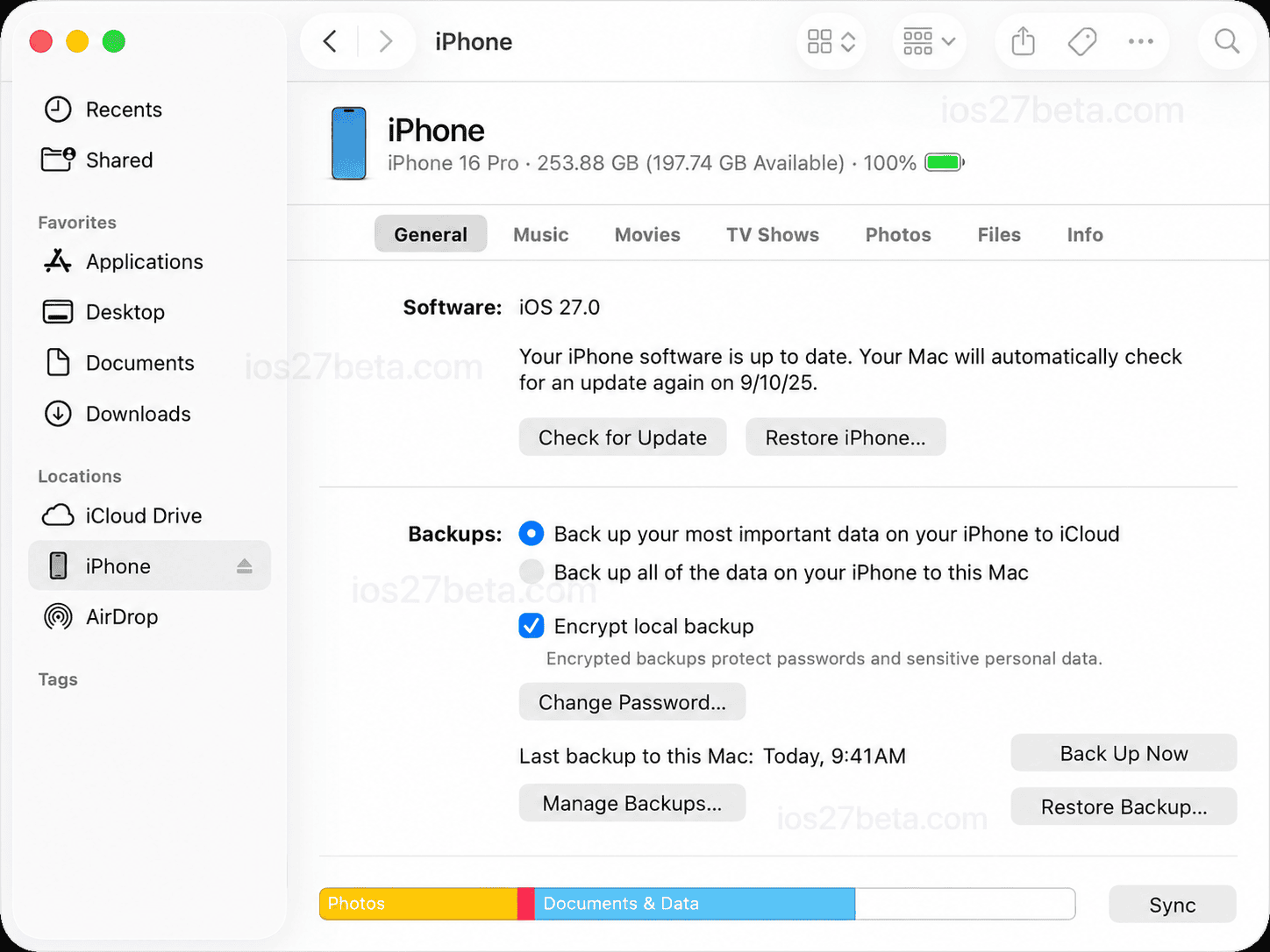
How to Install iOS 27 Public Beta (Recommended)
The Public Beta is the recommended path for most users. It arrives about 5 weeks after Developer Beta 1, after Apple has fixed the worst bugs. It's free and stable enough for daily use on most devices.
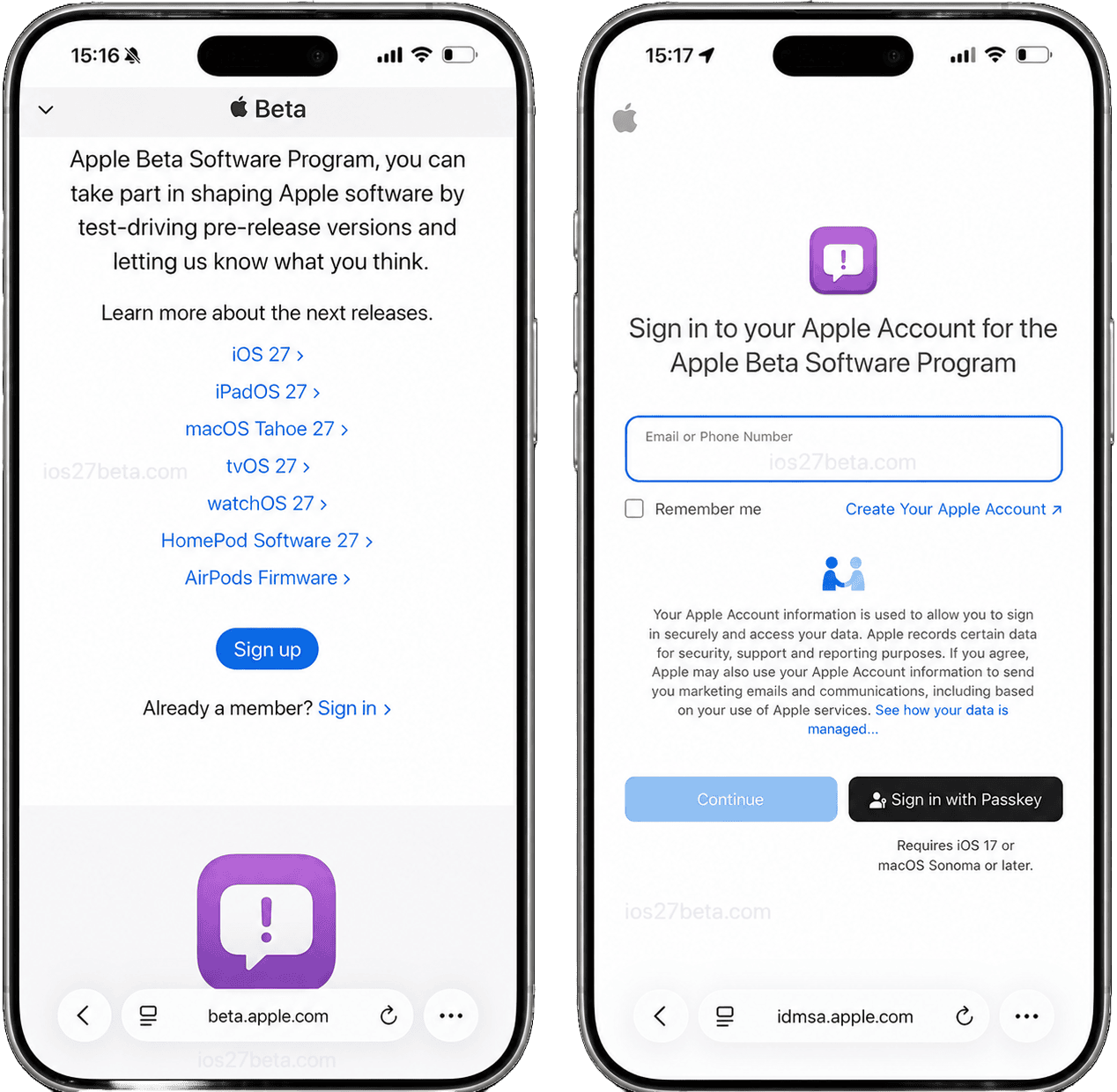
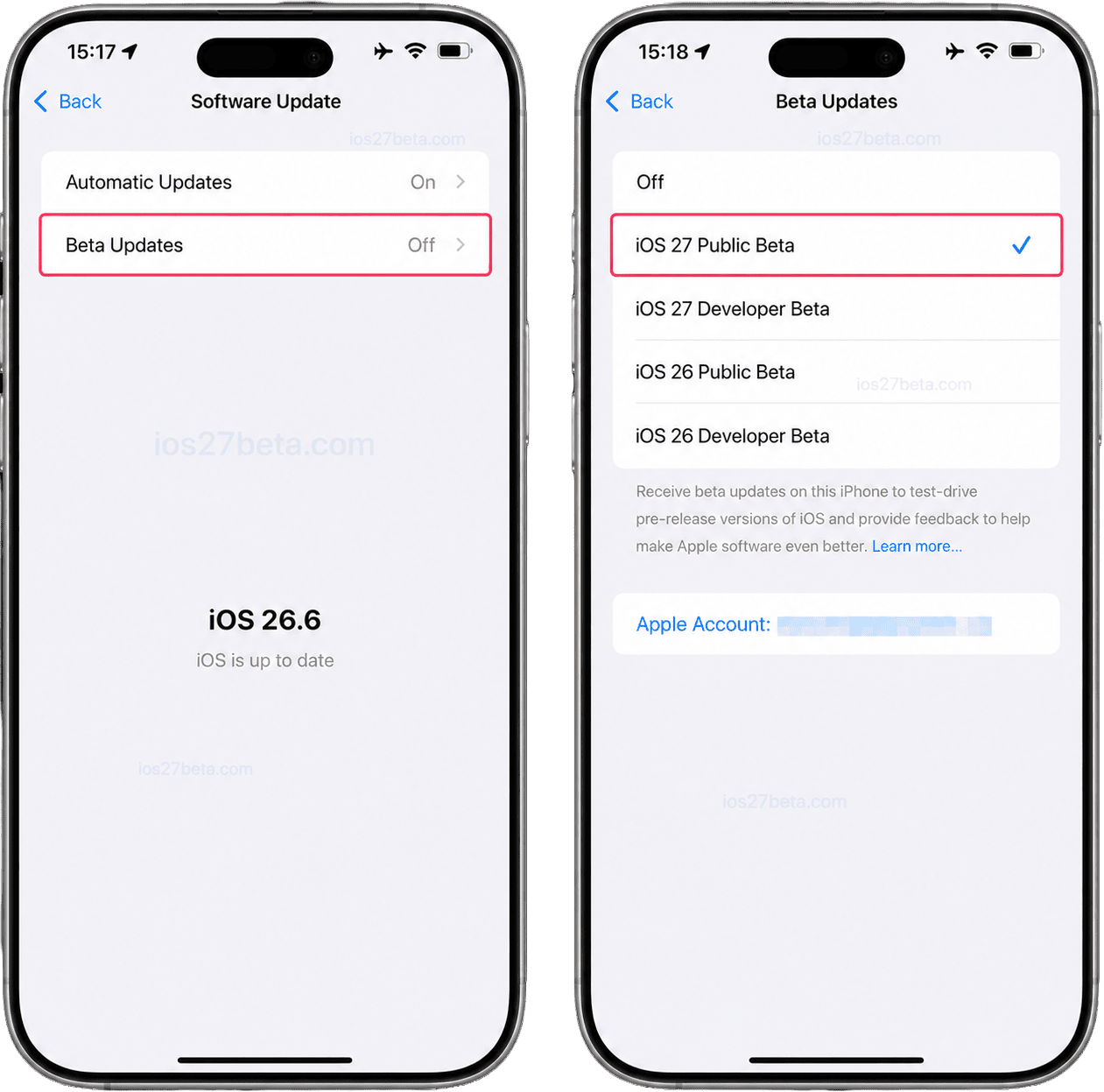
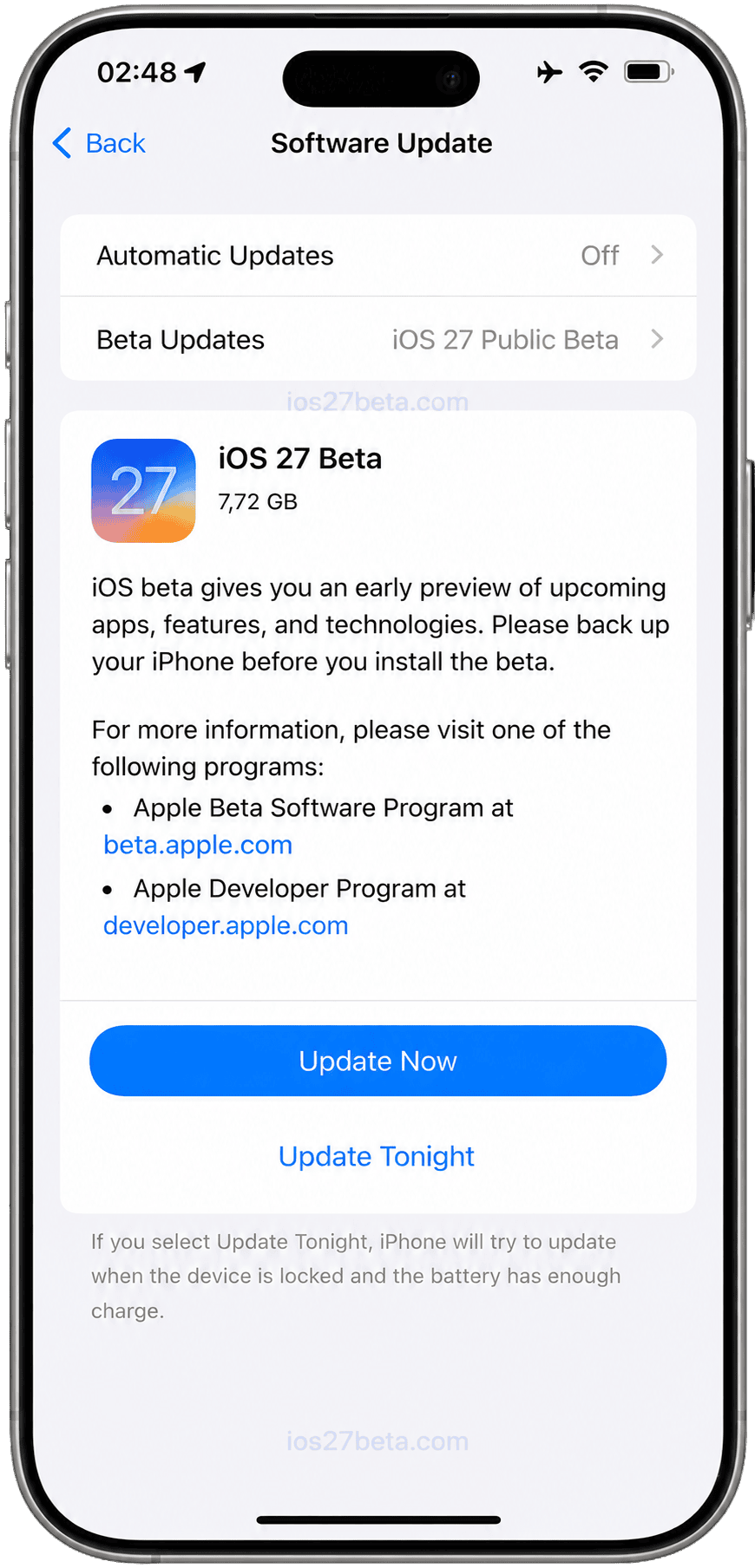
How to Install iOS 27 Developer Beta (Earliest Access)
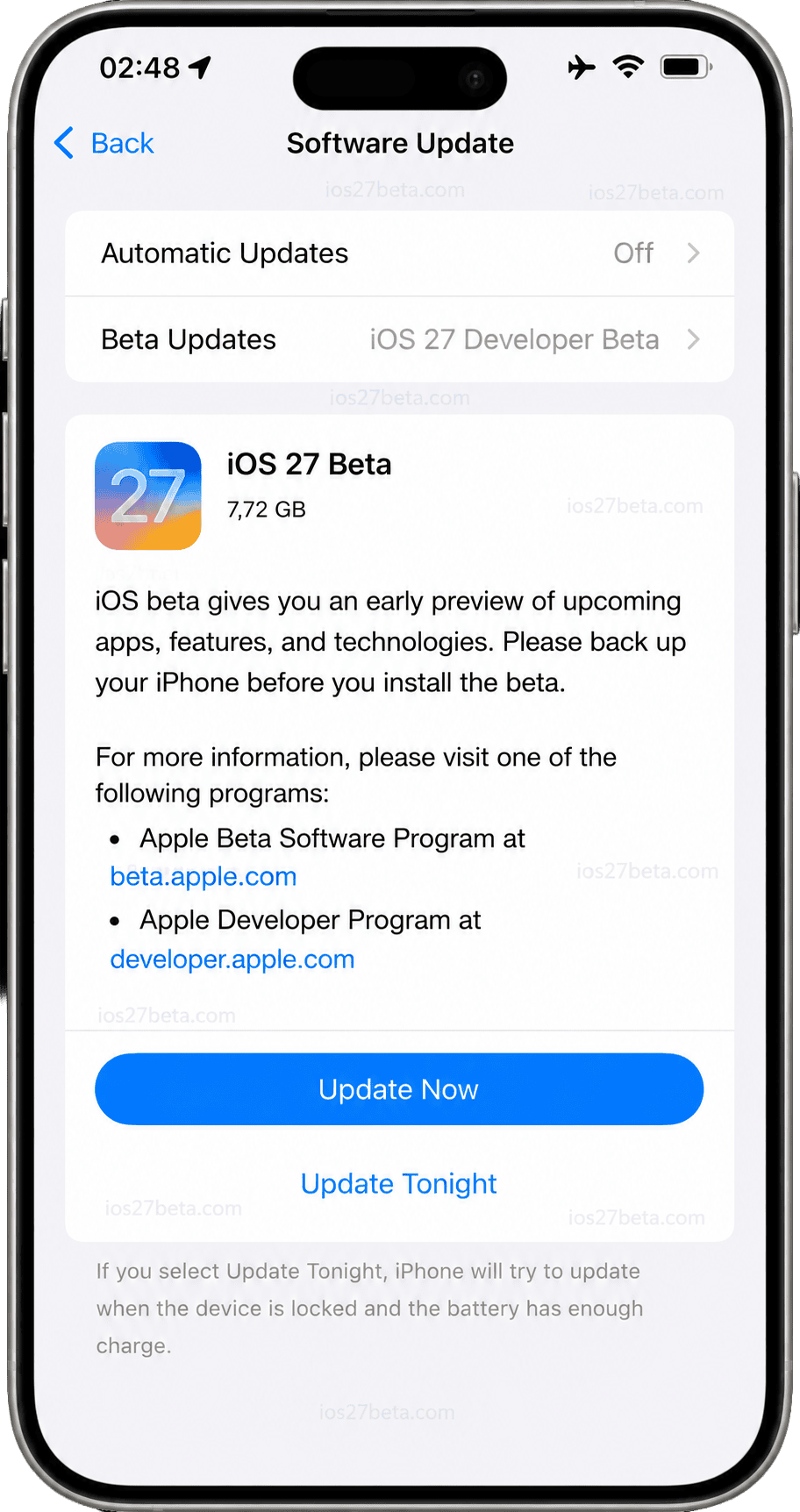
The Developer Beta gives you earliest access — typically available within 1–3 hours of the WWDC keynote ending. It's still completely free since June 2023.
After Installing iOS 27 Beta
Don't panic about battery for 48 hours
After a major iOS update, your iPhone spends 24–48 hours reindexing the Photos library, rebuilding Spotlight search, re-syncing iCloud, and downloading Apple Intelligence models. Battery drain is much worse during this period. This is completely normal. Wait two full days before deciding whether beta battery life is a real problem on your device.
Report bugs with Feedback Assistant
Apple installs a Feedback Assistant app on every beta. Find it on your home screen or Spotlight. When you discover a bug, file a report with reproduction steps and screenshots. Apple engineers actively read these reports — well-documented bugs often appear fixed in the next beta. See our guide on how to report bugs effectively.
Enable automatic updates
Beta builds release every 1–2 weeks (Developer) or 2–4 weeks (Public). Each fixes bugs from the previous one. Go to Settings → General → Software Update → Automatic Updates and turn on Download iOS Updates and Install iOS Updates.
Troubleshooting Common Installation Issues
How to Downgrade from iOS 27 Beta to iOS 26
If iOS 27 Beta is too unstable for you, you can downgrade to the latest signed iOS 26 release. The process requires a Mac or PC and erases the device. See our complete downgrade guide for step-by-step instructions with screenshots.
iOS 27 Release Timeline
For the complete schedule with all expected beta builds, see our iOS 27 release timeline. If you want to know exactly when iOS 27 Beta will be available in your country, check our worldwide time zone chart covering 40+ cities.
Frequently Asked Questions
Is iOS 27 Beta really free? Do I have to pay $99?
iOS 27 Beta is completely free. The $99 per year fee is the Apple Developer Program — required only for publishing apps to the App Store, not for beta access. Since June 2023, anyone with a free Apple ID can sign in at developer.apple.com and enable the Developer Beta. The Public Beta has always been free via beta.apple.com.
Where do I download the iOS 27 beta profile?
You don't need one. Beta configuration profiles haven't existed since iOS 16.4 (March 2023). Sites still advertising "iOS 27 beta profile downloads" are outdated or potentially unsafe. The real method is signing in with your Apple ID — covered in this guide.
When does iOS 27 Beta release?
iOS 27 Developer Beta 1 releases Monday, June 8, 2026, immediately after the WWDC keynote (around 1:00 PM Pacific Time). Public Beta arrives in mid-July 2026. The final iOS 27 release ships in mid-September 2026.
Can I install iOS 27 Beta without a computer?
Yes. The entire process is done on your iPhone alone via Settings. You only need a computer if you want a more thorough backup (recommended) or to downgrade to iOS 26 later via IPSW.
Can I use iOS 27 Beta as my daily driver?
The Public Beta (mid-July 2026) is generally stable enough for daily use, but expect occasional bugs, app compatibility issues, and battery drain. The Developer Beta 1 is less stable and not recommended for your primary device — wait at least until Developer Beta 3 or Public Beta 1 if it's your only iPhone.
Will my apps work on iOS 27 Beta?
Most apps work fine on iOS 27 Beta. The ones most likely to break temporarily are banking apps, authenticator apps (Authy, Google Authenticator), some VPN clients, and corporate-managed apps. Developers usually push iOS 27 compatibility updates within 1–2 weeks of Beta 1.
My iPhone 11 (or older) — can I install iOS 27?
No. iOS 27 requires iPhone 12 or later. The iPhone 11, XS, XR, X, 8, and earlier models are not supported. These iPhones will continue receiving iOS 26 security updates for at least one more year.
Will I get Apple Intelligence on iOS 27 Beta?
Apple Intelligence requires an iPhone with at least 8 GB RAM and an A17 Pro chip or newer. That means iPhone 15 Pro, 15 Pro Max, and every iPhone 16 and 17 model. Other supported iPhones can still install iOS 27 Beta but won't see Apple Intelligence features like the new Siri, Genmoji, Image Playground, or Writing Tools.
How do I provide feedback to Apple about bugs?
Use the Feedback Assistant app pre-installed on every beta. Open it, tap the plus icon, select the bug category, describe what happened with steps to reproduce, attach screenshots or screen recordings. Detailed reports get prioritized — see our complete bug reporting guide.
Can I downgrade from iOS 27 Beta to iOS 26?
Yes, but only while Apple is still signing iOS 26. You'll need a Mac or PC, the latest iOS 26 IPSW file, and Recovery Mode access. The process erases your iPhone, and iOS 27 backups cannot restore to iOS 26. See our step-by-step downgrade guide.
- Apple Developer Program — Official documentation on free developer accounts
- Apple Beta Software Program — Official Public Beta enrollment
- Apple Developer Support — Installing beta software
- Apple WWDC 2026 — Official event page
- Apple Developer Agreement update, June 2023 — Free Developer Beta access for all Apple IDs
- iOS 16.4 release notes (March 2023) — Removal of beta configuration profiles